
How to make and receive phone calls on PhoneLine+
There are two main ways to make a call in the PhoneLine+ app. Click the ‘Show More’ links below to view content for either desktop or mobile devices.
 Making calls on desktop
show more
The first way to make a call (on desktop) is to use the dial pad to type the number you wish to call. Ensure you have selected the correct number you wish to call from, from the ‘My Number’ drop-down list first (this is applicable if you have multiple numbers assigned to you by your company administrator).

Alternatively, you can click in the ‘Number, name or ext (extension)’ field at the top, and use your keyboard to enter the numbers, contact name or extension (within your organisation) that you wish to dial.
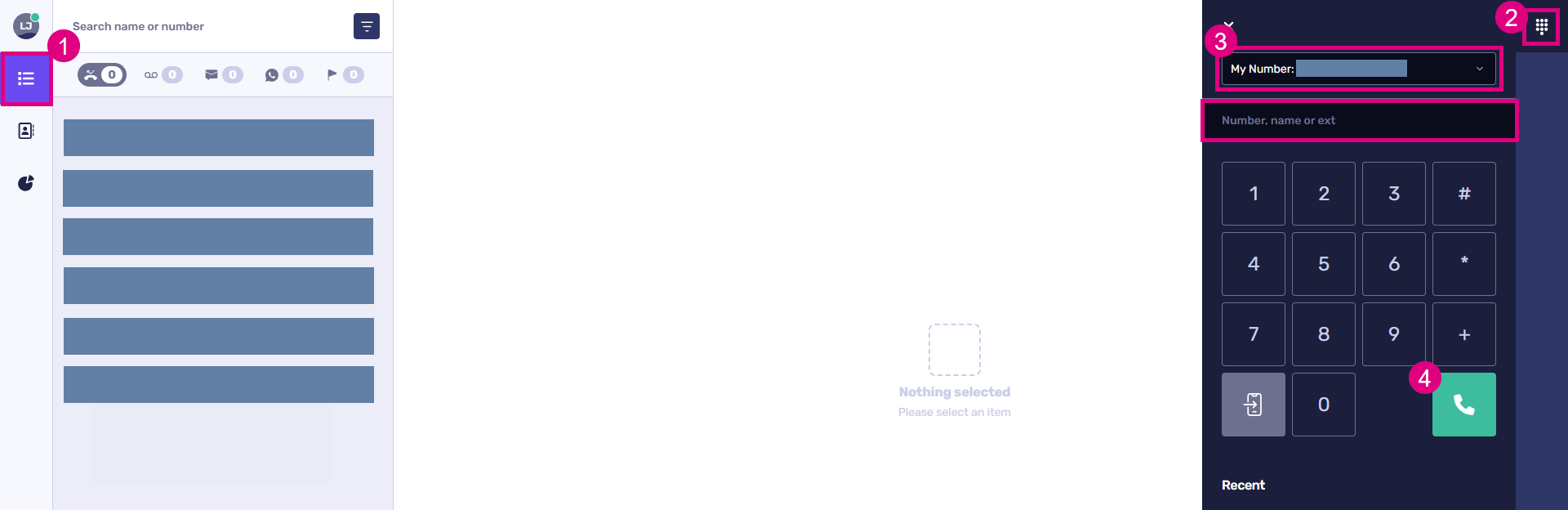
You must use area codes when dialling a number.
To start a call, use enter on your keyboard, or the phone button.

Calling a contact on the desktop app
To open the contacts menu, press the contacts icon on the left hand side.

From here you can view:
- All contacts
- Personal contacts
- Company contacts (these are internal company PhoneLine+ app users)
- Shared contacts (these are contacts that have been set to ‘Shared’ by anyone within your organisation)
- And any contacts you have added to your ‘Favourites’.
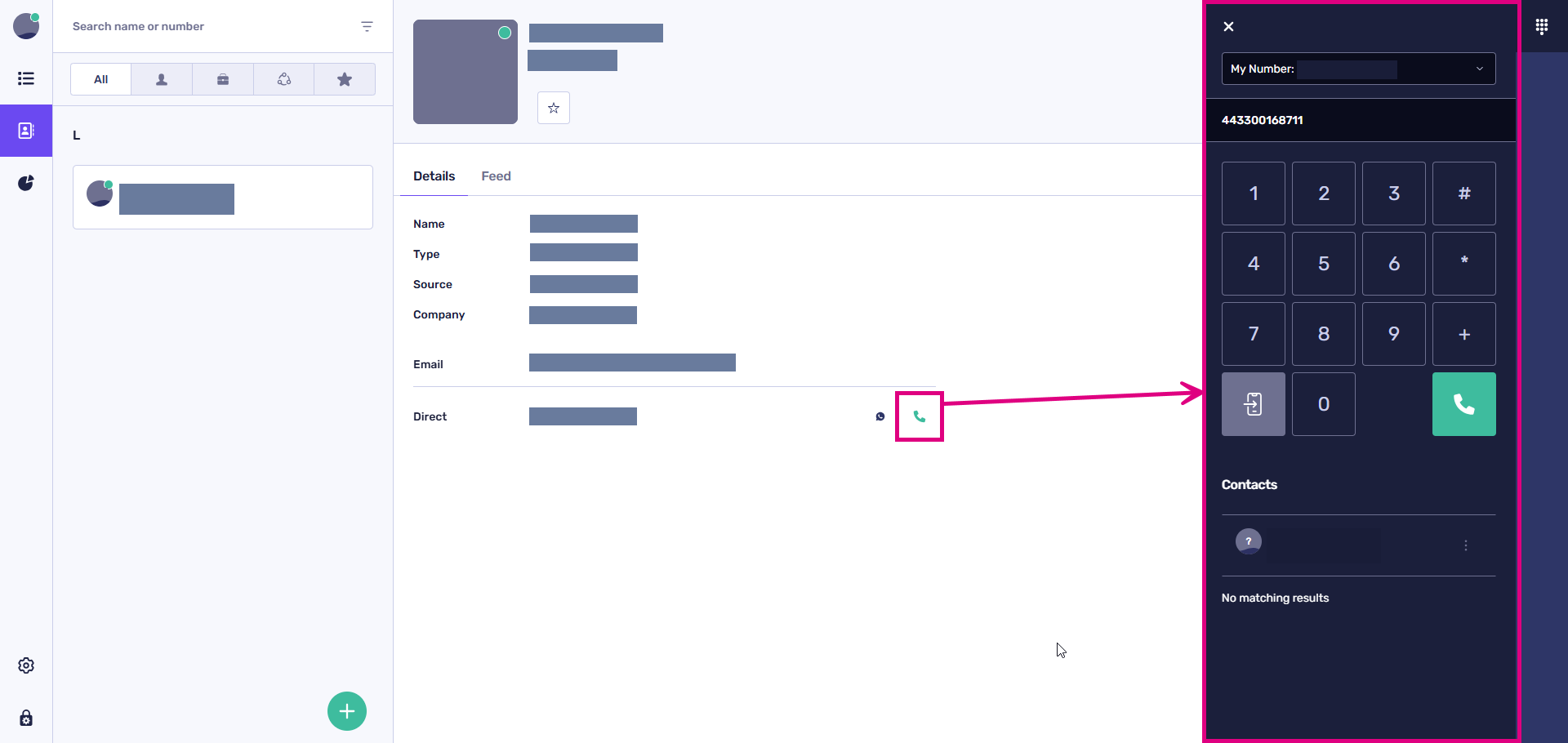
To call a contact, first click on their name.

Any numbers associated with that contact will appear within the ‘Direct’ field.

Click the phone icon to start a call.
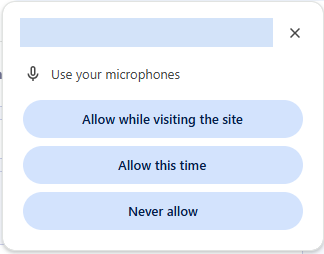
If you are using the desktop version of PhoneLine+, you may see the following popup asking for your permission to use your device’s microphone. Select either ‘Allow while visiting the site’ or ‘Allow this time’.
The dial pad will appear on-screen for the duration of the call (you can hide this by clicking the dial pad icon in the top right, if you wish).
Having trouble making a call on desktop?
If you are not able to make calls, please check the following:
- You have a number currently assigned to you (go to the ‘Settings’ screen (cog icon) then ‘My Numbers’ screen)
- Your company does not have a firewall in place which may restrict VoIP calling.
If your calls are not being made from the correct number, please check the following:
- You have selected the default number that you wish to make calls from on the ‘My Numbers’ page (only applies if more than one number has been assigned to you).
If you are still having issues with this feature, please contact your company administrator or service provider.
show less Receiving or redirecting a call on desktop
show more
Receiving calls:
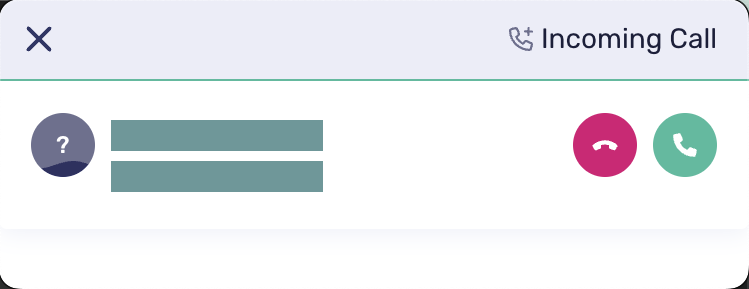
When you are receiving a call with PhoneLine+ open, your ringtone will play, and the interface will change to display the number or name of the caller.

You can accept or decline an incoming call with the phone icons.
If PhoneLine+ is not active, you may receive a pop-up notification outside of the app.
Redirecting to another user, team or menu
You can update your incoming call and notification settings from the ‘Settings’ menu (accessed via the cog icon on your screen).
For example, set your your incoming calls to redirect to another user, team or menu. To do this, select this option in the ‘Call Settings’ section of the screen then choose how long you’d like the call to ring for, before it is redirected.
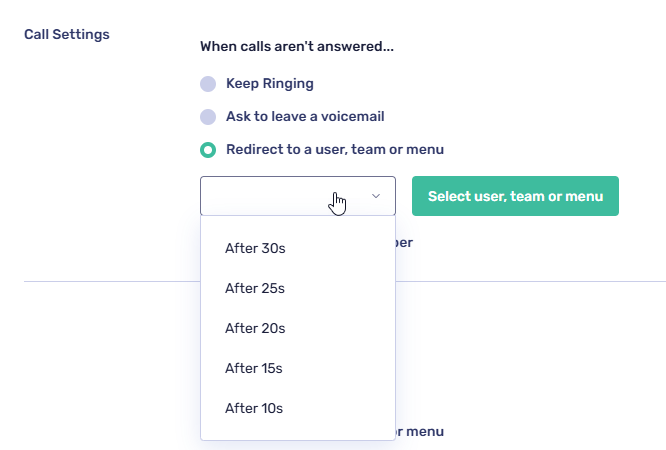
Next, click ‘Select user, team or menu’ to choose a destination to redirect your incoming calls to.
We cover the ‘Call Settings’ configuration elsewhere in this PhoneLine+ Knowledge Base. In summary, your call options are:
- Allowing the call to keep ringing
- Ask for the caller to leave a voicemail; And
- Redirect to another number.
Making calls on mobile devices
show more
Your keypad screen
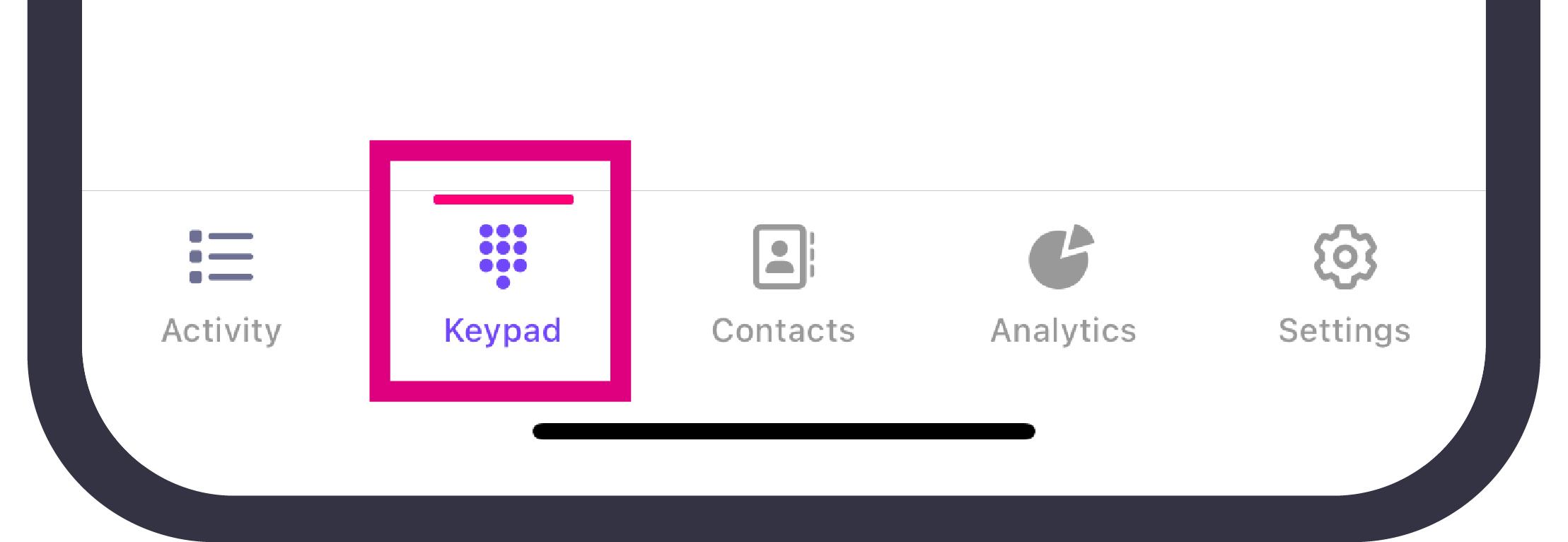
To make a call on a mobile device, tap the keypad icon at the bottom of your screen.
Making a call on mobile
With PhoneLine+, if you have multiple numbers assigned to your account, you can choose which one to call from by tapping the ‘Call from’ menu.
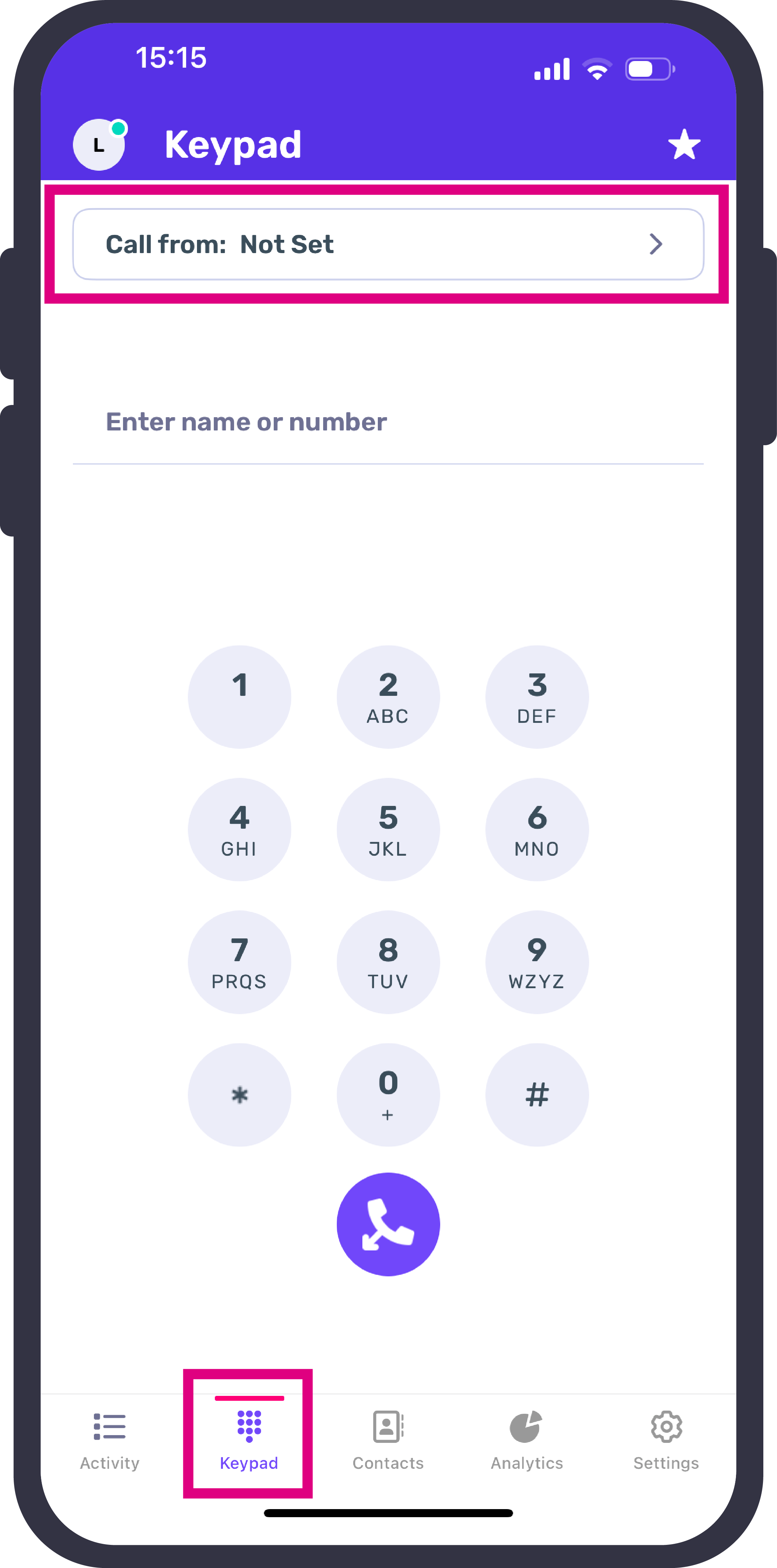
Use the keypad to call your contact (remember to add any area codes!), or, if you wish to call a PhoneLine+ user within your company, or if you wish to type the number in manually,, tap the ‘Enter name or number’.
You can also tap the star icon to call any contacts within your ‘Favourites’ list.

Tap the handset icon to make a call.
Having trouble making a call on a mobile device?
If you are not able to make calls, please check the following:
- You have a number currently assigned to you
- Your company does not have a firewall in place which may restrict VoIP calling.
If your calls are not being made from the correct number, please check the following:
- You have selected the default number that you wish to make calls from on the ‘My Numbers’ page (only applies if more than one number has been assigned to you).
If you are still having issues with this feature, please contact your company administrator or service provider.
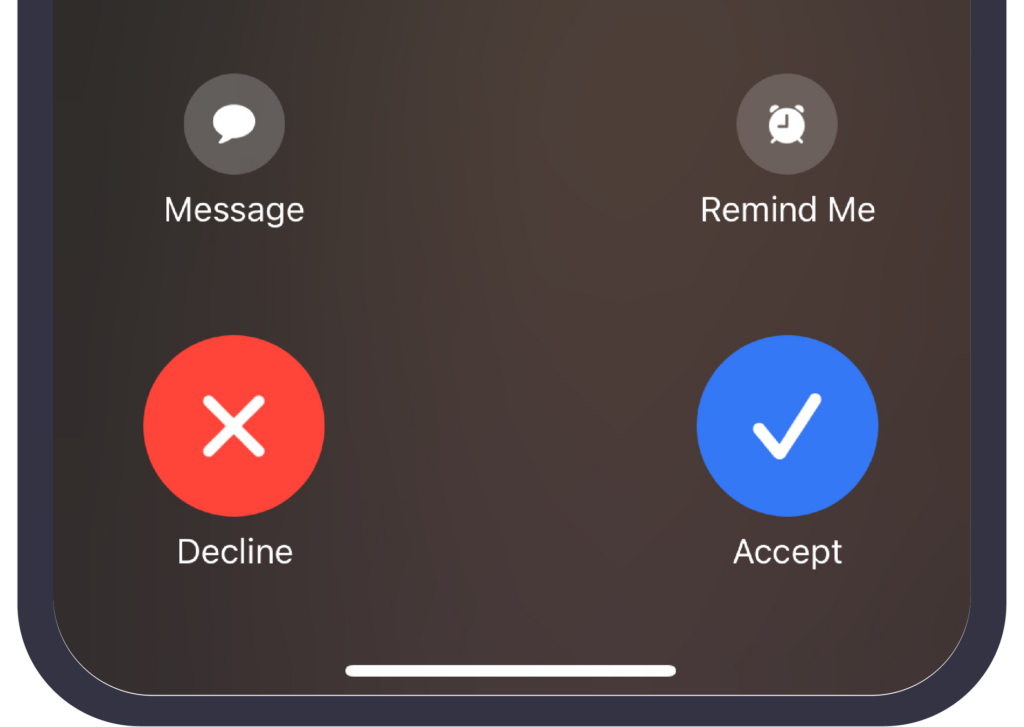
show lessTo answer a PhoneLine+ call on mobile devices depends on your phone’s default view. For example, on iOS simply tap ‘Accept’ or ‘Decline’ as you would with any regular call.
Once connected to a call, you’ll have the options to:
- Mute your microphone
- Use your keypad (to choose options on a DTMF menu, for example)
- Place the call on loud speaker
- Transfer your call
- Place the call on hold
- Minimise the call screen (allowing you to browse your phone whilst in an active call)
- Add call notes.
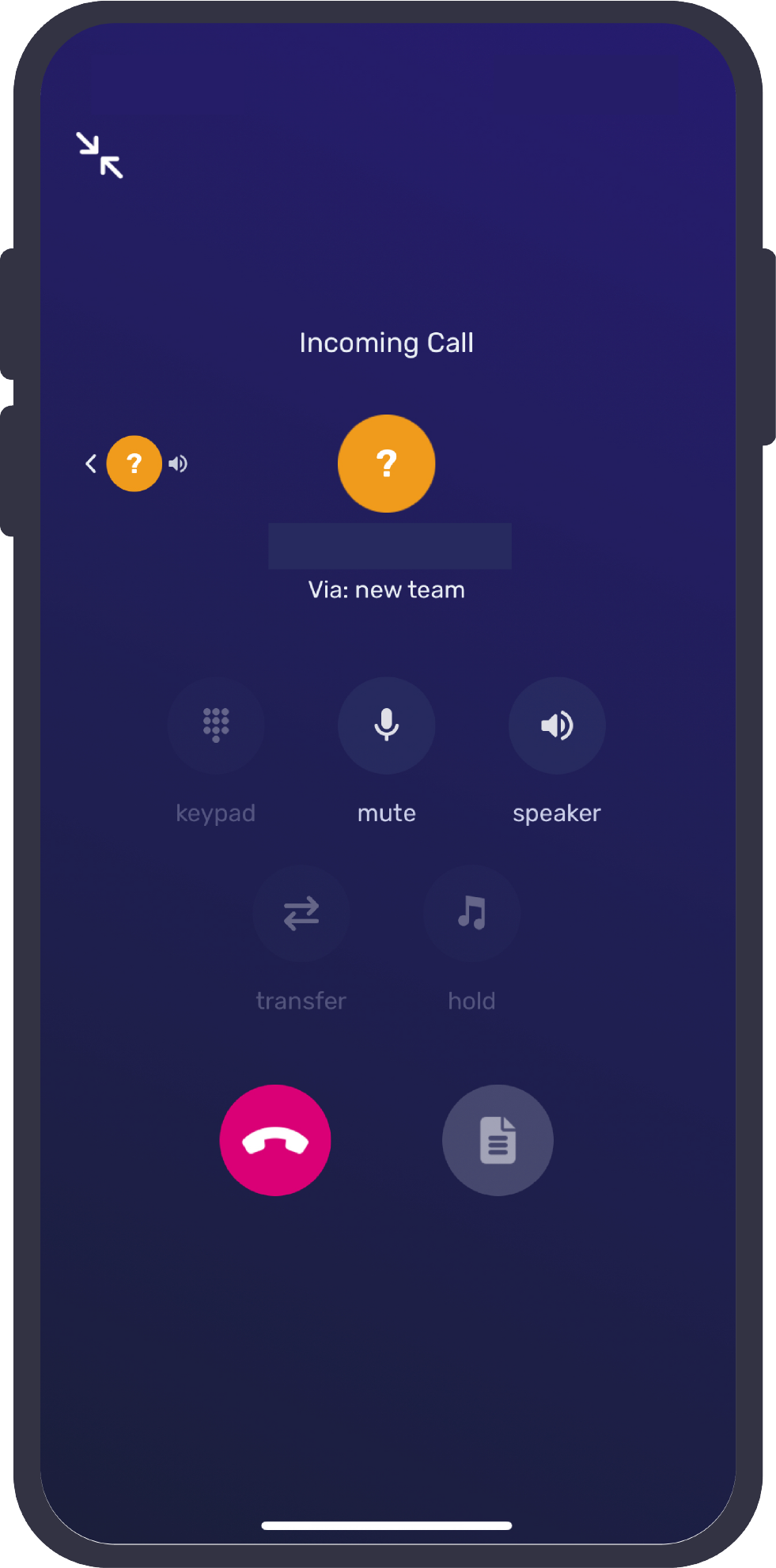
Click the red handset icon to end the call.
Adding notes during a call (mobile)
Tap the notes icon to add call notes, then tap ‘Add note’ to save it against that call.

You can search for any call notes that have been added against a specific number from your ‘Activity’ screen.
Simply the three dots next to the number then select ‘View Call Notes’.

Troubleshooting for receiving calls on mobile
If you are not able to receive calls, please check the following:
- You have a number currently assigned to you
- You are not currently set to away (indicated by a red dot next to your avatar)
- You do not have a permanent redirect configured within your ‘Devices’ settings
- Your company does not have a firewall in place which may restrict VoIP calling.
If you are still having issues with this feature, please contact your company administrator or service provider.
show less