
A status helps other PhoneLine+ users within your company know your availability. Adjusting your user presence on desktop and mobile to indicate your availability for calls is straightforward.
 Setting your user presence (desktop)
show more
Each status is associated with a specific colour for quick and easy recognition:
- Green – Active
- Yellow – Away, Custom
- Red – Busy, Do Not Disturb.
First, log in to your account, then click on your user profile icon.
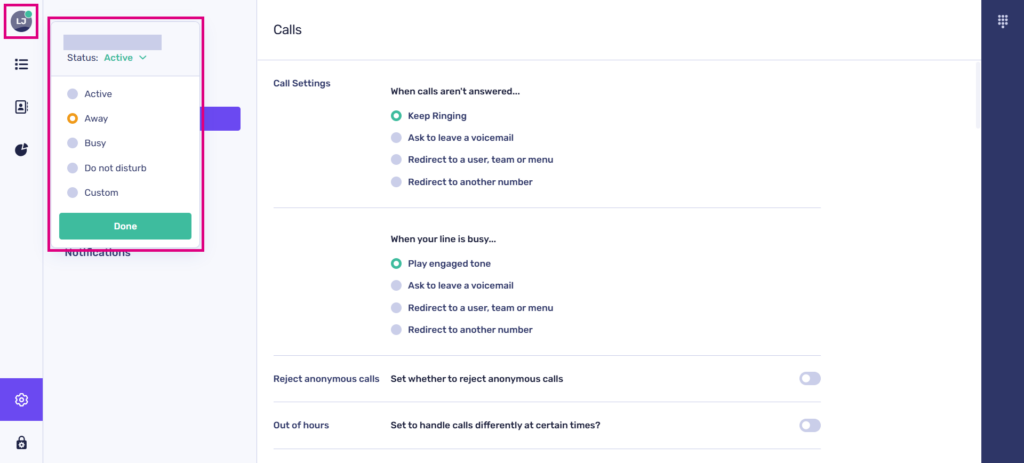
Here are the user presence options available to you and their effects on your PhoneLine+ account:
- Active – Green status. This indicates that you are available to receive calls, and internal users will see that you are available
- Away – Yellow status. This indicates to internal users that you prefer not to answer calls at the moment, however you will still receive call notifications
- Busy – Red status. Activating this and the DND status below means you will not receive call notifications. Internal users will see that you are unavailable
- Do not Disturb (DND).
If a call is made directly to a user in the ‘Busy’ or ‘DND’ (red) statuses, the call will follow the user’s out of hours settings.
- Custom – You have the ability to personalise your status here. For instance, you might choose to indicate that you are “Out to lunch.”
- Teams calls: Calls to a Team will still ring all other available users within the team, but it will exclude the user who is busy or set to ‘DND’.
Configuring what happens when you are ‘Busy’
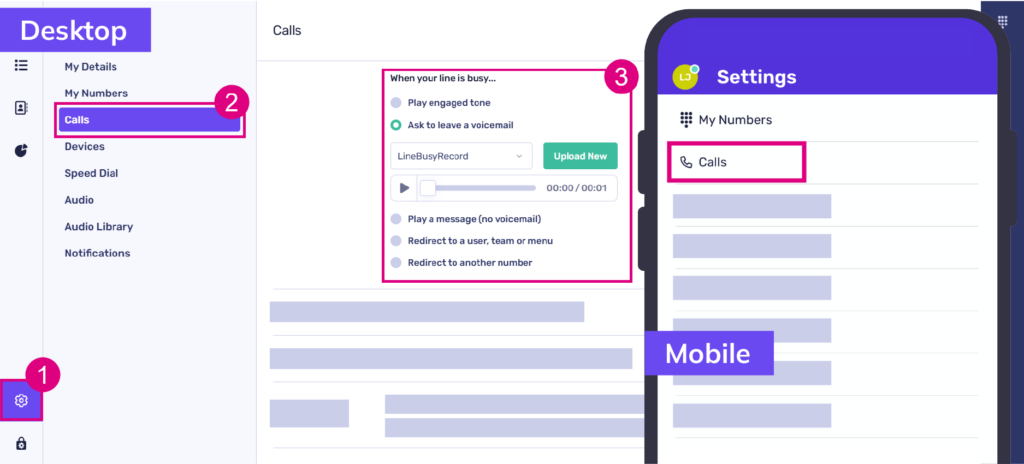
You can customise your PhoneLine+ app to perform the following actions when your line is busy:
- Play an engaged tone
- Ask the caller to leave a voicemail (for more information on voicemail configuration, please view the ‘voicemail’ article on this knowledge base)
- Play a message (no voicemail)
- Redirect the call to a user, team or menu; Or
- Redirect to another number.
To configure these settings, simply click or tap the ‘Settings’ cog, then select ‘Calls’ and scroll down to the appropriate section.
Setting your user presence (mobile)
show more
Adjusting your user presence on mobile to indicate your availability for calls is straightforward.
First, log in to your account, then click on your user profile icon.
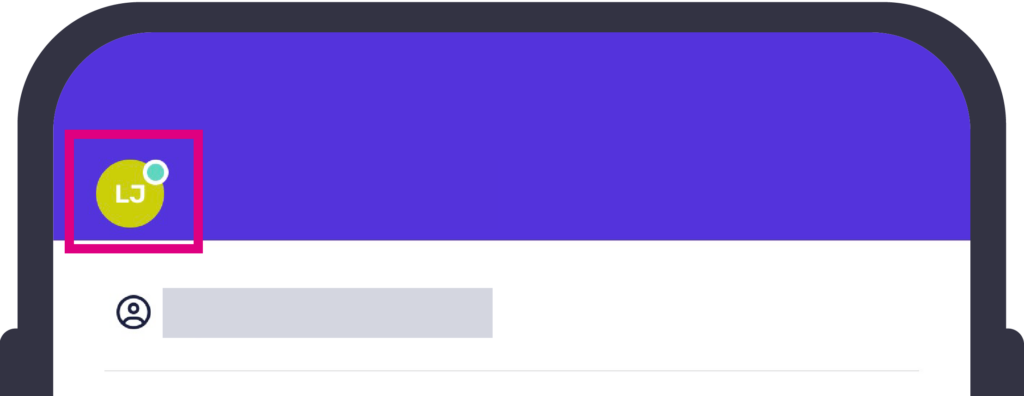
Here are the user presence options available to you and their effects on your PhoneLine+ account:
- Active – Green status. This indicates that you are available to receive calls, and internal users will see that you are available.
- Away – Yellow status. This indicates to internal users that you prefer not to answer calls at the moment, however you will still receive call notifications
- Busy – Red status. Activating this and the DND status below means you will not receive call notifications. Internal users will see that you are unavailable
- Do not Disturb (DND).
If a call is made directly to a user in the ‘Busy’ or ‘DND’ (red) statuses, the call will follow the user’s out of hours settings.
- Custom – You have the ability to personalise your status here. For instance, you might choose to indicate that you are “Out to lunch.”
- Teams calls: Calls to a Team will still ring all other available users within the team, but it will exclude the user who is busy or set to ‘DND’.