Skip to content
No results
When autocomplete results are available use up and down arrows to review and enter to go to the desired page. Touch device users, explore by touch or with swipe gestures.
  • App download links
  • Example Release Notes
  • Feedback
  • Home
  • PhoneLine+ Customer Knowledge Base
  • Release Notes
  • PhoneLine+ features
  • What’s new?
  • Search results
  • Classic Home
  • PHONELINE+ APPLICATION – END USER LICENCE AGREEMENT
PhoneLine+ Logo.
  • PhoneLine+ features
  • App download links
Release Notes
PhoneLine+ Logo.

Getting started

5
  • PhoneLine+ Quick Start guide
  • Minimum system requirements
  • Registering and logging in
  • How to sign out and check for updates
  • Forgotten password

Making and Receiving Calls

5
  • Call short codes (all devices)
  • Choosing a number to call from
  • Making and receiving calls
  • Features during a call
  • Call activity

Call Settings & Voicemail

6
  • Call settings
  • Outbound and inbound call permissions
  • Hold music
  • Out of hours settings
  • Voicemail
  • Voice Portal codes

Managing Contacts

3
  • Adding and deleting a contact
  • Contact categories and filters
  • Managing your PhoneLine+ contacts

Integrations

5
  • WhatsApp Business integration
  • Send a message via WhatsApp Business
  • WhatsApp Business integration Q&A
  • eSIM support
  • Mobile numbers and SMS

PhoneLine+ Analytics

2
  • Create and download reports (desktop only)
  • View your PhoneLine+ Analytics

User Presence & Profile Settings

3
  • ‘My Details’ and ‘My Account’
  • Setting your user presence
  • Snooze

Sound Settings

2
  • Your audio library
  • Audio settings and ringtone selection

Device Guides

2
  • PhoneLine+ Supported Hardware
  • Device troubleshooting

Adding & Sharing Recordings

1
  • Add/share recordings, and audio recommendations

Notifications

1
  • Manage your email notifications

Administrator Functionality

7
  • View and edit PhoneLine+ users
  • View, search for, and unassign numbers
  • Blocking numbers
  • Add and manage teams
  • Add and manage menus
  • Global Settings & Activity Log
  • Speed dials

Troubleshooting Quick Tips

3
  • Your PhoneLine+ welcome email
  • Resetting your password
  • Navigating the PhoneLine+ Customer Knowledge Base
  • Home
  • Docs
  • Administrator Functionality
  • View and edit PhoneLine+ users
View Categories

View and edit PhoneLine+ users

2 min read

down arrow Viewing your PhoneLine+ users (desktop)

show more
As a PhoneLine+ Admin user, you have the ability to view and edit the profiles of other PhoneLine+ users within your organisation.

Adding new PhoneLine+ users: If you wish to add new users to your PhoneLine+ company, please contact your service provider.

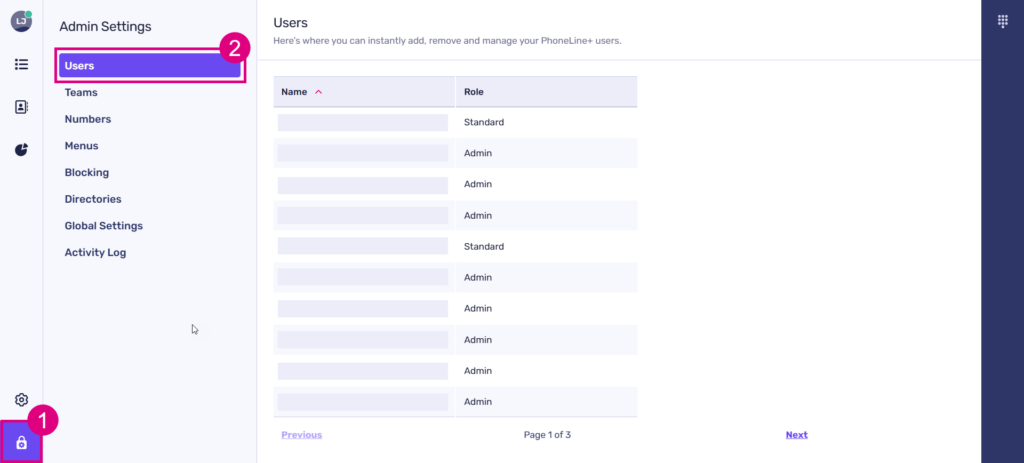
To access the administrator functionality, simply click on ‘Admin Settings’.

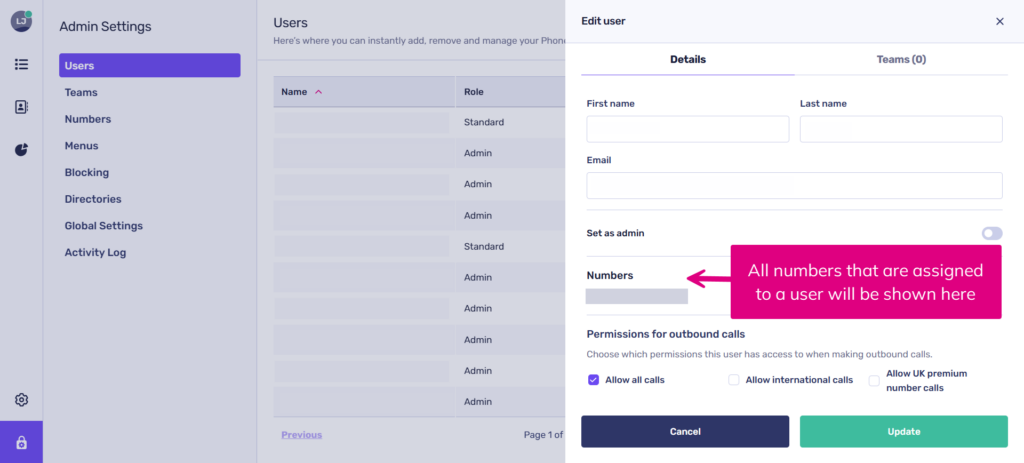
To view and manage users, simply click on the ‘Users’ tab located in your ‘Admin Settings’ screen.

Editing a user

Please choose a user from the available list.

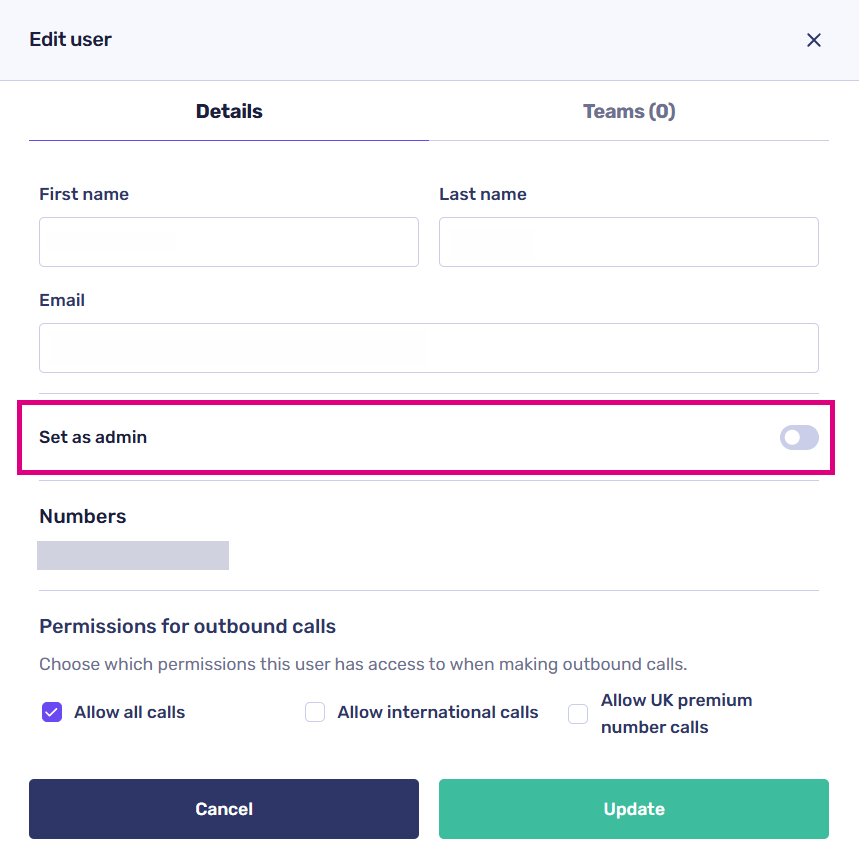
You can update user details, including:

  • The user’s name
  • The user’s email address
  • If your account has international or UK premium numbers activated, you can choose whether users are permitted to make these types of calls
  • You can manage how unanswered calls are handled for the user, for example asking a caller to leave a voicemail or re-directing them to another user within your company
  • If calls should be handled differently at certain times, for example out of hours, you can also set this here.

Important Reminder: These settings need to be configured at the company level and must align with the user’s call configuration in order for them to be effective.

  • The option to set whether to reject anonymous calls can also be configured here.

For further details regarding the configuration settings mentioned above, please refer to the ‘Call Settings and Voicemail’ section in this knowledge base.

You have the option to designate the user as a PhoneLine+ administrator, should you choose to do so.

show less

down arrow Viewing your PhoneLine+ users (mobile)

show more
As a PhoneLine+ Admin user, you have the ability to view and edit the profiles of other PhoneLine+ users within your organisation.

Adding new PhoneLine+ users: If you wish to add new users to your PhoneLine+ company, please contact your service provider.

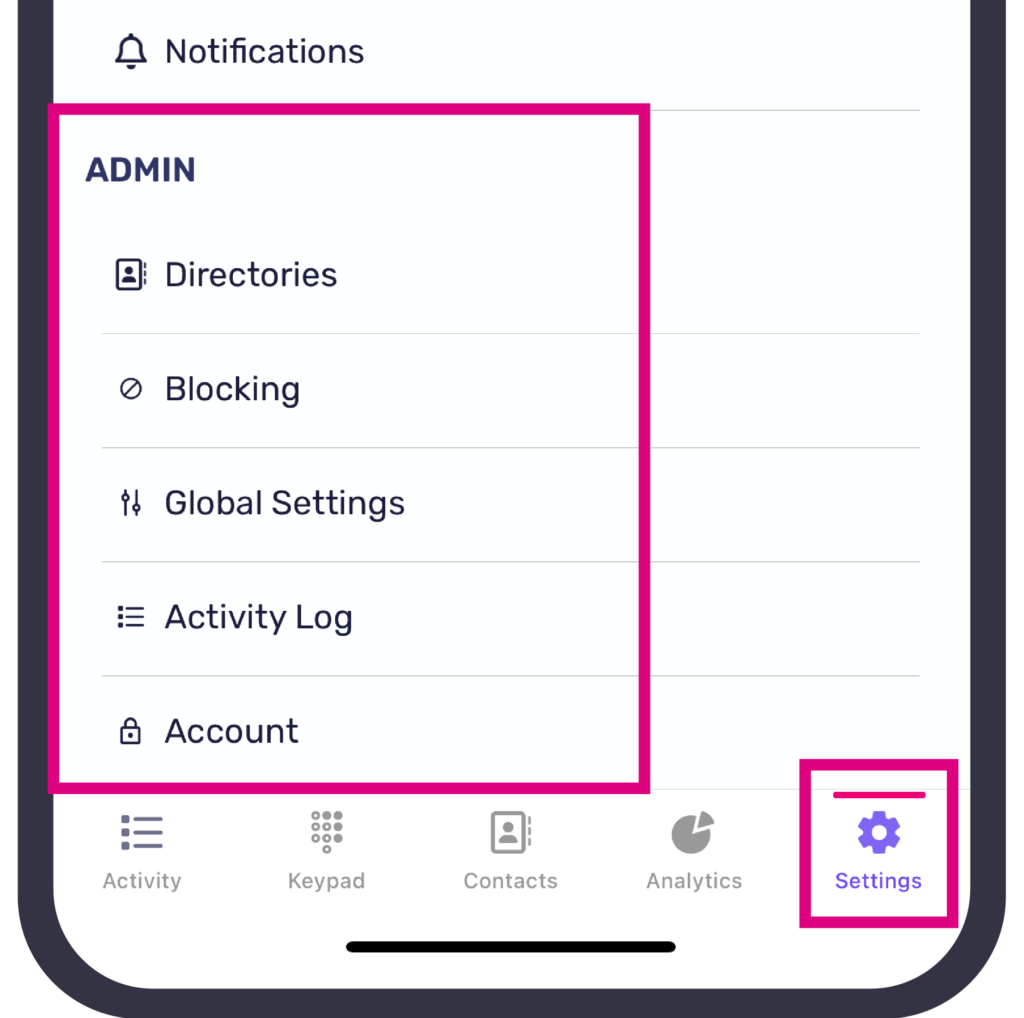
To access the administrator functionality, simply tap the ‘Settings’ cog then navigate down to ‘ADMIN’.

Editing a user

Please choose a user from the available list.

You can update user details, including:

  • The user’s name
  • The user’s email address
  • If your account has international or UK premium numbers activated, you can choose whether users are permitted to make these types of calls
  • You can manage how unanswered calls are handled for the user, for example asking a caller to leave a voicemail or re-directing them to another user within your company
  • If calls should be handled differently at certain times, for example out of hours, you can also set this here.

Important Reminder: These settings need to be configured at the company level and must align with the user’s call configuration in order for them to be effective.

  • The option to set whether to reject anonymous calls can also be configured here.

For further details regarding the configuration settings mentioned above, please refer to the ‘Call Settings and Voicemail’ section in this knowledge base.

You have the option to designate the user as a PhoneLine+ administrator, should you choose to do so.

show less

Troubleshooting

Can’t add a new user

New users cannot be added to PhoneLine+ by a company administrator. To add new user(s), please reach out to your service provider for assistance.

Can’t update a user

If you are unable to update a user’s details within your company, please review the following steps:

  • You have successfully filled out all the necessary fields, including the user’s full name and email address.
  • The email address you provided is valid and unique, meaning it has not been previously used within PhoneLine+.

If you continue to experience issues, please reach out to your service provider for assistance.

How do you feel about this content?
View, search for, and unassign numbers
Table of Contents
  • Viewing your PhoneLine+ users (desktop)
  • Editing a user
  • Viewing your PhoneLine+ users (mobile)
  • Editing a user
  • Troubleshooting
  • Can’t add a new user
  • Can’t update a user
  • Home
  • PHONELINE+ APPLICATION – END USER LICENCE AGREEMENT
We use cookies to measure performance and make improvements to this service. This includes page views, device/browser, location, and page interactions. We do not collect any information you upload to this site. By agreeing, you consent for your data to be used for this purpose.