Skip to content
No results
When autocomplete results are available use up and down arrows to review and enter to go to the desired page. Touch device users, explore by touch or with swipe gestures.
  • App download links
  • Example Release Notes
  • Feedback
  • Home
  • PhoneLine+ Customer Knowledge Base
  • Release Notes
  • PhoneLine+ features
  • What’s new?
  • Search results
  • Classic Home
  • PHONELINE+ APPLICATION – END USER LICENCE AGREEMENT
PhoneLine+ Logo.
  • PhoneLine+ features
  • App download links
Release Notes
PhoneLine+ Logo.

Getting started

5
  • PhoneLine+ Quick Start guide
  • Minimum system requirements
  • Registering and logging in
  • How to sign out and check for updates
  • Forgotten password

Making and Receiving Calls

5
  • Call short codes (all devices)
  • Choosing a number to call from
  • Making and receiving calls
  • Features during a call
  • Call activity

Call Settings & Voicemail

6
  • Call settings
  • Outbound and inbound call permissions
  • Hold music
  • Out of hours settings
  • Voicemail
  • Voice Portal codes

Managing Contacts

3
  • Adding and deleting a contact
  • Contact categories and filters
  • Managing your PhoneLine+ contacts

Integrations

5
  • WhatsApp Business integration
  • Send a message via WhatsApp Business
  • WhatsApp Business integration Q&A
  • eSIM support
  • Mobile numbers and SMS

PhoneLine+ Analytics

2
  • Create and download reports (desktop only)
  • View your PhoneLine+ Analytics

User Presence & Profile Settings

3
  • ‘My Details’ and ‘My Account’
  • Setting your user presence
  • Snooze

Sound Settings

2
  • Your audio library
  • Audio settings and ringtone selection

Device Guides

4
  • Yealink T34W User Guide
  • YeaLink T31W User Guide
  • PhoneLine+ Supported Hardware
  • Device troubleshooting

Adding & Sharing Recordings

1
  • Add/share recordings, and audio recommendations

Notifications

1
  • Manage your email notifications

Administrator Functionality

7
  • View and edit PhoneLine+ users
  • View, search for, and unassign numbers
  • Blocking numbers
  • Add and manage teams
  • Add and manage menus
  • Global Settings & Activity Log
  • Speed dials

Troubleshooting Quick Tips

3
  • Your PhoneLine+ welcome email
  • Resetting your password
  • Navigating the PhoneLine+ Customer Knowledge Base
  • Home
  • Docs
  • User Presence & Profile Settings
  • ‘My Details’ and ‘My Account’
View Categories

‘My Details’ and ‘My Account’

4 min read

You can effortlessly add or modify your personal information through your user profile, commonly referred to as the ‘My Details’ or ‘My Account’ screen.

down arrow Your user profile/My details (desktop)

show more
You can effortlessly add or modify your personal information through your user profile, commonly referred to as the ‘My Details’ or ‘My Account’ screen.

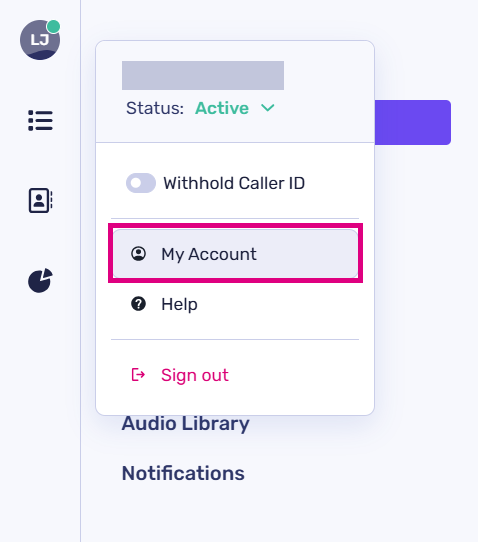
To access this feature on a desktop, simply click on your profile icon located at the top left corner of the screen, and then select ‘My Account’.

From here, you can:

  • Set your profile status to one of the following options:
  • Withhold your caller ID when making outbound calls
  • Explore the PhoneLine+ Knowledge Base (you are currently here!); Or
  • Sign out of PhoneLine+. This action will take you to the login screen.

This will direct you to a settings page where you can easily update your personal PhoneLine+ user details.

Accessing your personal details via the ‘Settings’ screen

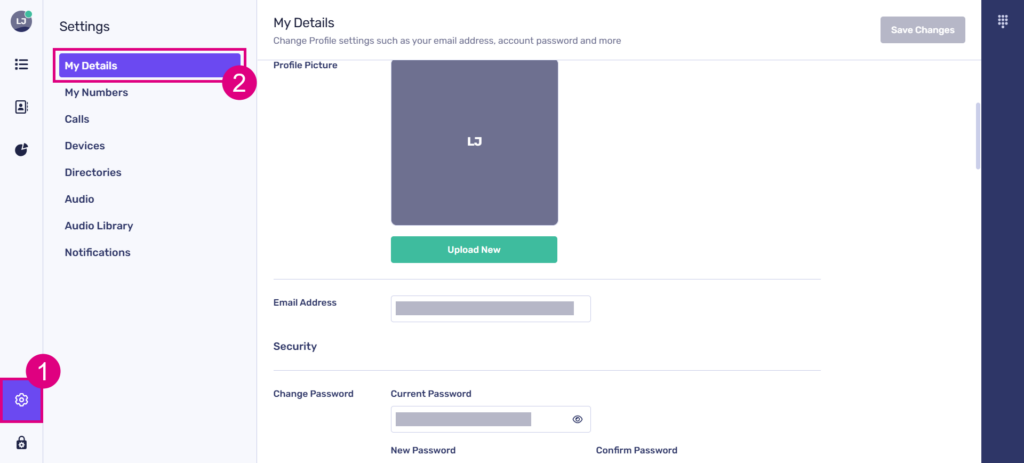
You can also access this page by navigating to the ‘Settings’ screen, then clicking ‘My Details’.

On this page, you can:

Add/update your PhoneLine+ profile picture

  • Click on ‘Upload New’ and browse your device for a suitable image
  • Images must be either JPG or PNG format
  • The maximum file size for images is 1MB.

Create a new PhoneLine+ password (if required)

  • For your security, please remember that sensitive information, such as your password, should be kept confidential. Passwords must be 8 or more characters, contain letters and at least one number. The eye icon in the password field will allow you to toggle visibility of the password as you enter it. This can make it easier to enter your password accurately. Be aware of your surroundings when using this feature, to avoid people around you seeing your screen.

View and/or update your address

  • View and update the email address associated with your PhoneLine+ account. The e-mail address that you use here must be valid and unique (not already been used within PhoneLine+)
  • Click ‘Find another address’ to start from scratch
  • Your address is used to identify your location if you call 999 emergency services

Select your locale

  • View or select a new locale and/or timezone
  • Localisation is used to determine your out of hours settings.

Locating your app version number

You can easily locate the version of the app you are currently using from this screen as well.

This information is displayed at the bottom of your profile screen.

show less

down arrow Your Profile Menu (mobile)

show more

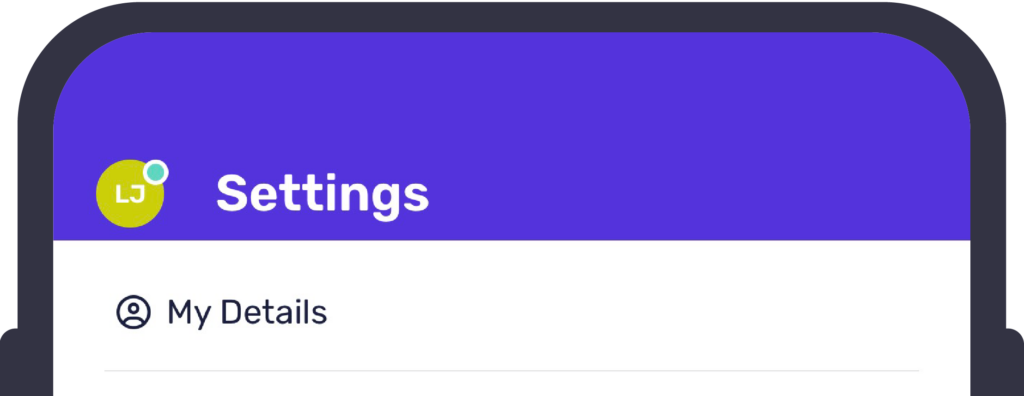
On mobile devices, tap the profile icon in the top left corner of your screen to bring up your ‘Profile Menu’.

From here, you can:

  • Set your profile status to available, away, busy, do not disturb (DND), or custom
  • When you choose the ‘Custom’ status option, you have the flexibility to create your own status message, such as ‘Having lunch’
  • Enable ‘Call Waiting’
  • Withhold your caller ID when making outbound calls
  • Mute the app’s notifications; Or
  • Sign out to return to the login screen.

Locating your app version number on mobile

The version of PhoneLine+ currently running on your app can be found at the bottom of your Profile Menu.

View/amend your personal details

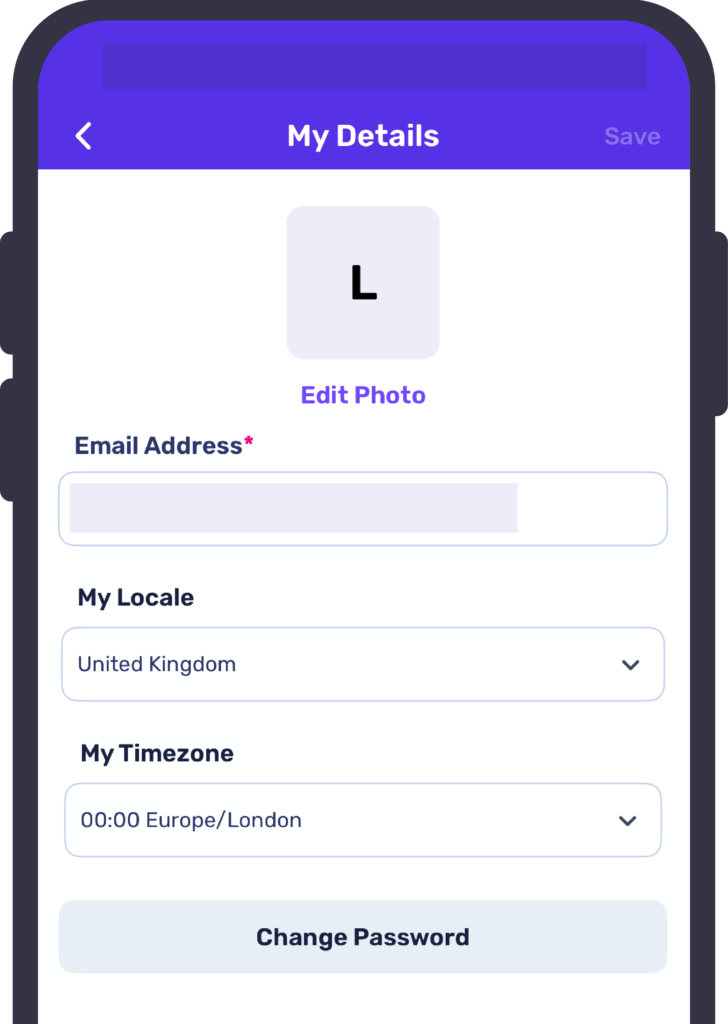
To update your personal information, simply go to the ‘Settings’ screen and select ‘My Details’.

From here, you can:

View and/or update your address

  • View and update the email address associated with your PhoneLine+ account. The e-mail address that you use here must be valid and unique (not already been used within PhoneLine+)
  • Click ‘Find another address’ to start from scratch
  • Your address is used to identify your location if you call 999 emergency services

Select your locale

  • View or select a new locale and/or timezone
  • Localisation is used to determine your out of hours settings.

show less

Troubleshooting

If you are experiencing difficulties uploading a new user profile picture, please take the following points into consideration:

  • Images must be either JPG or PNG format
  • The maximum file size for images is 1MB.

If you are not able to update your profile information, please check the following:

  • The e-mail address that you have entered is valid and unique (not already been used within PhoneLine+)
  • If you are changing your password, please ensure that you have entered your current password correctly and that your new password is 8 or more characters, contain letters and at least one number
  • If you are still having issues with this feature, please contact your service provider.
How do you feel about this content?
Setting your user presence
Table of Contents
  • Your user profile/My details (desktop)
  • Accessing your personal details via the ‘Settings’ screen
  • Locating your app version number
  • Your Profile Menu (mobile)
  • Locating your app version number on mobile
  • View/amend your personal details
  • Troubleshooting
  • Home
  • PHONELINE+ APPLICATION – END USER LICENCE AGREEMENT
We use cookies to measure performance and make improvements to this service. This includes page views, device/browser, location, and page interactions. We do not collect any information you upload to this site. By agreeing, you consent for your data to be used for this purpose.