During a call you have the option to place the other party on hold.
In the settings, you can enhance the experience by adding hold music, either by recording your own audio track, uploading an existing one, or using one shared throughout your company.
 Configuring your ‘hold’ music on desktop
show more
To set up your hold music on desktop, click on the ‘Settings’ cog. Next, select ‘Calls’ and scroll down until you find the option.

You’ll have the following options:
- Select a hold music from the drop-down menu
- Upload New to import an audio track (if you already have a recording you wish to use) or record one directly from your device
- Choose a recording that has been shared by your colleagues within the company.
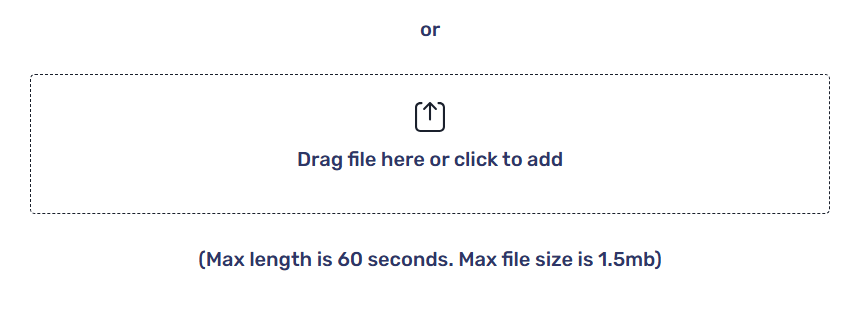
Please note that recordings must not exceed 60 seconds in duration, and the file size should be limited to a maximum of 1.5 MB.
Recording hold music
To record new hold music, simply select the option labelled ‘Click to record new’.
By pressing this button, you can click the microphone icon to start recording audio from your microphone. To conclude the recording session, simply press the ‘stop’ icon.

You can easily play back your recording by clicking the ‘play’ icon. If you are satisfied with it, simply use the ‘save’ button to set it as your hold music. Should you wish to re-record, click ‘cancel’ to delete the current recording and start over.
Uploading hold music
To upload an existing recording, simply drag it into the designated ‘Drag file here’ area or click to browse your computer or device for the recording you want to use. For convenience, we recommend organising any recordings you wish to upload into a folder on your desktop, making them easier to locate.
Once you have completed your task, just click on ‘Save’ to finalise your changes.
show less Configuring your ‘hold’ music on mobile
show more
During a call you have the option to place the other party on hold.
In the settings, you can enhance the experience by adding hold music, either by recording your own audio track, uploading an existing one, or using one shared throughout your company.
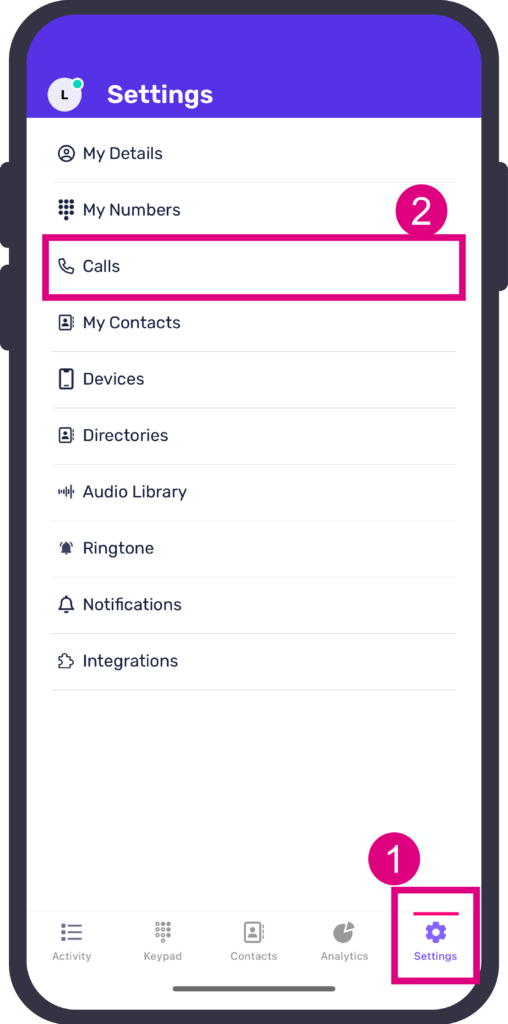
To set up your hold music on mobile devices, tap on the ‘Settings’ cog. Next, select ‘Calls’ and scroll down until you find the option.
Toggle ‘On-Hold Music’ on.

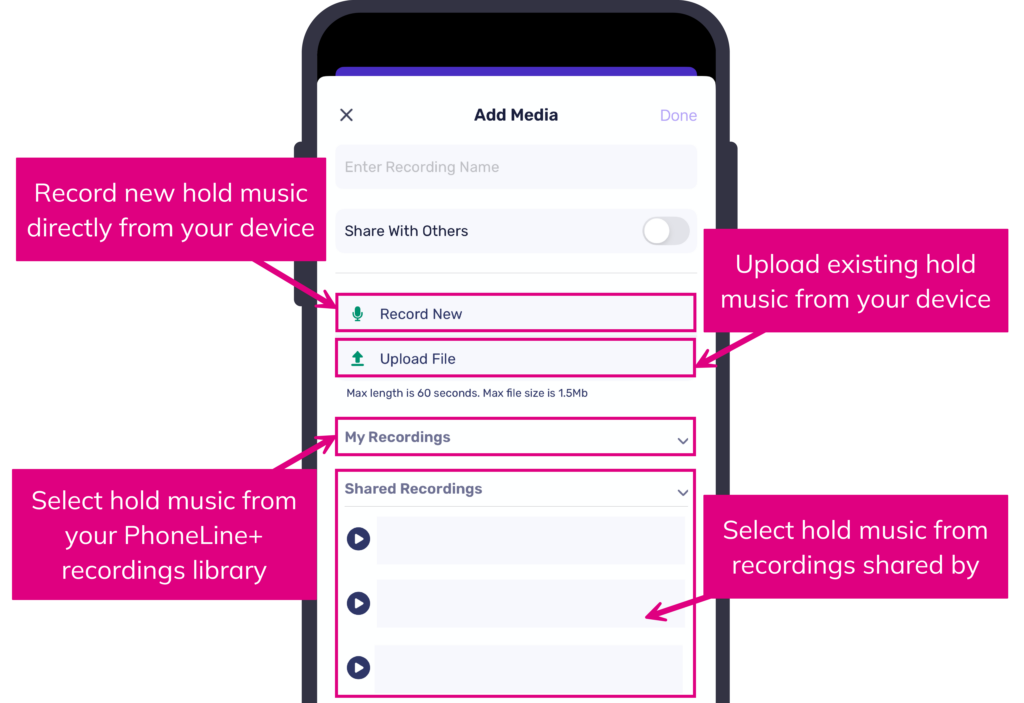
You’ll have the following options:
- Select a hold music from the drop-down menu
- Upload New to import an audio track (if you already have a recording you wish to use) or record one directly from your device
- Choose a recording that has been shared by your colleagues within the company.
Recording hold music
Please note that recordings must not exceed 60 seconds in duration, and the file size should be limited to a maximum of 1.5 MB.
To record new hold music directly on your device, simply select the option labelled ‘Record New’.
To begin recording audio using your phone’s microphone, press and hold the microphone icon. Once you are finished with your recording, just release the icon.

A ‘play’ icon will be displayed, enabling you to listen to your recording prior to finalising it. If you are pleased with the result, just tap the tick icon to designate it as your hold music.
Should you wish to re-record, click ‘cancel’ to delete the current recording and start over.
Uploading hold music
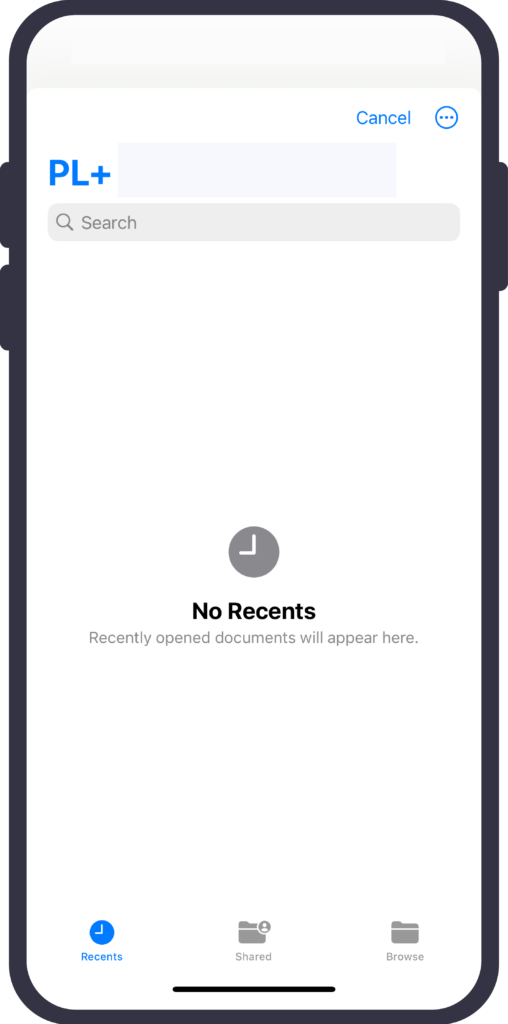
To upload an existing recording, simply tap ‘Upload File’ to browse your device for the recording you want to use. Please note that this view will differ slightly depending on the device you are using.