
 Call activity on desktop
show more
You can view a list of the recent activity on your PhoneLine+ account. This is split into internal calls and external calls.
Internal calls are those made to other users, while external calls are those made to numbers outside of PhoneLine+.
Viewing and filtering your call activity/history
To view all call activity/history, simply click the ‘Home’ tab on the left side of the screen. You will be presented with a series of activity filters along the top of the first section of the screen.

Call activity filters include:
- Outbound calls are calls made by you to others
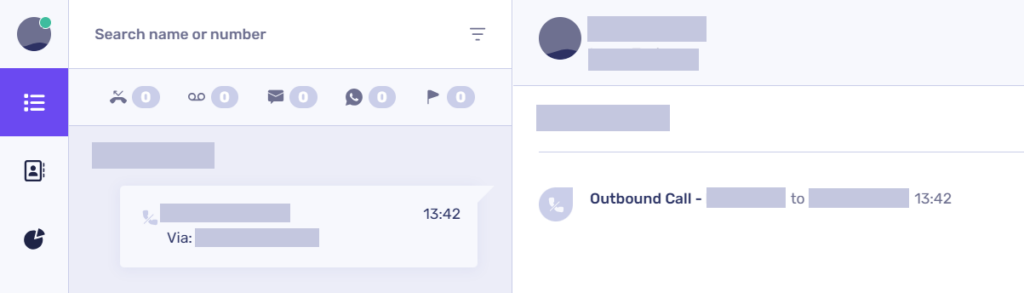
- Inbound calls are calls that you have accepted
You can filter call activity the following ways:
- Missed calls are incoming calls which you missed or declined
- Voicemail are messages left by incoming callers
- SMS are text messages that have been delivered to mobile numbers (available to PhoneLine+ Anywhere customers only)
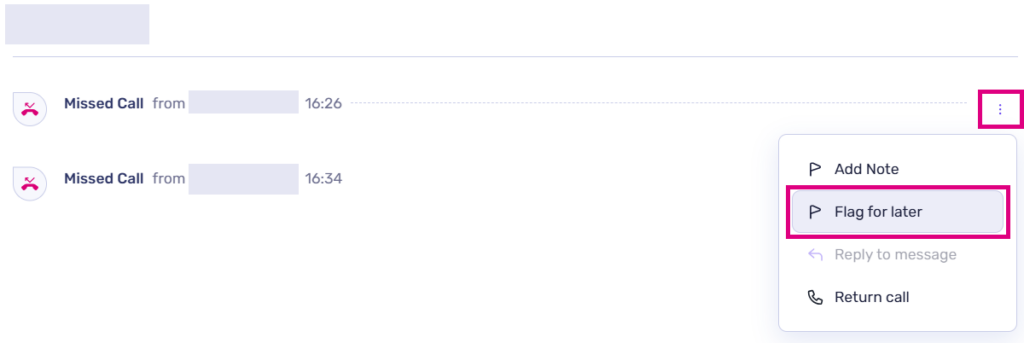
- Flagged – This refers to any call activity that you have marked for future reference. For instance, you might want to revisit a voicemail recording when you find a more suitable moment to listen to it.
Call information
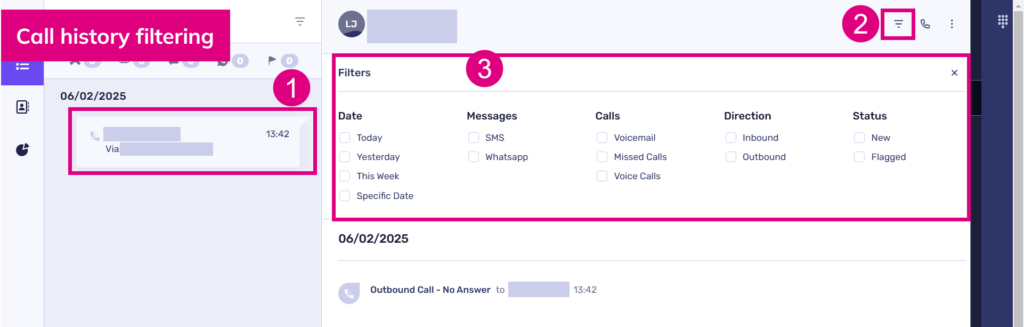
By clicking on a card in the call activity panel, you have a few options. You can:
- View a history of calls/contacts from a particular individual
- Filter by date, messages, calls, direction (i.e. inbound or outbound) and status
- Call the person back (either through their full number or extension number, if available)

- View the contact’s details (where applicable).

Receiving voicemail (desktop)
If you have received a voicemail, you will see this in your call activity feed.
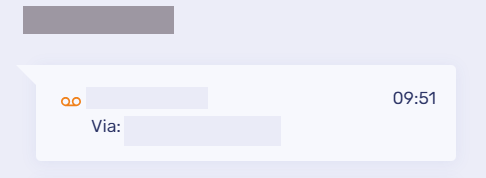
The voicemail icon will appear alongside the number from which the call was received.
Click on a voicemail to view its details.

From here you will have the following options:
- Listen to the voicemail recording
- Download the voicemail to your computer
- Read the voicemail’s transcript.
For detailed information about voicemail, including instructions on how to customise your voicemail message, please refer to the ‘Voicemail’ article available in the PhoneLine+ Customer Knowledge Base.
Additionally, Administrators can configure voicemail settings for Menus and Teams; this information is included in the ‘Administrator functionality’ section of this Knowledge Base.
show less Call activity on mobile
show more
You can view a list of the recent activity on your PhoneLine+ account. This is split into internal calls and external calls.
Internal calls are those made to other users, while external calls are those made to numbers outside of PhoneLine+.
Viewing and filtering your call activity/history
To view your call history on mobile devices, simply tap the ‘Activity’ icon at the bottom of the screen.
Your call activity filters are displayed along the top of the screen beneath your main taskbar. Let’s take a look at what each of these features do.
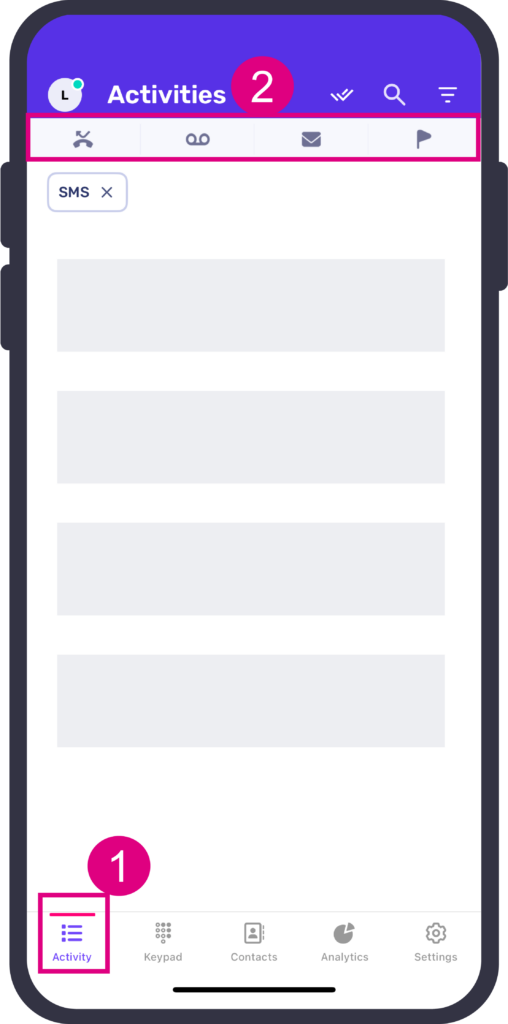
- Missed calls are incoming calls which you missed or declined
- Voicemail are voice messages left by incoming callers
- SMS are text messages that have been delivered to mobile numbers (available to PhoneLine+ Anywhere customers only)
- Flagged – This refers to any call activity that you have marked for future reference. For instance, you might want to revisit a voicemail recording when you find a more suitable moment to listen to it.
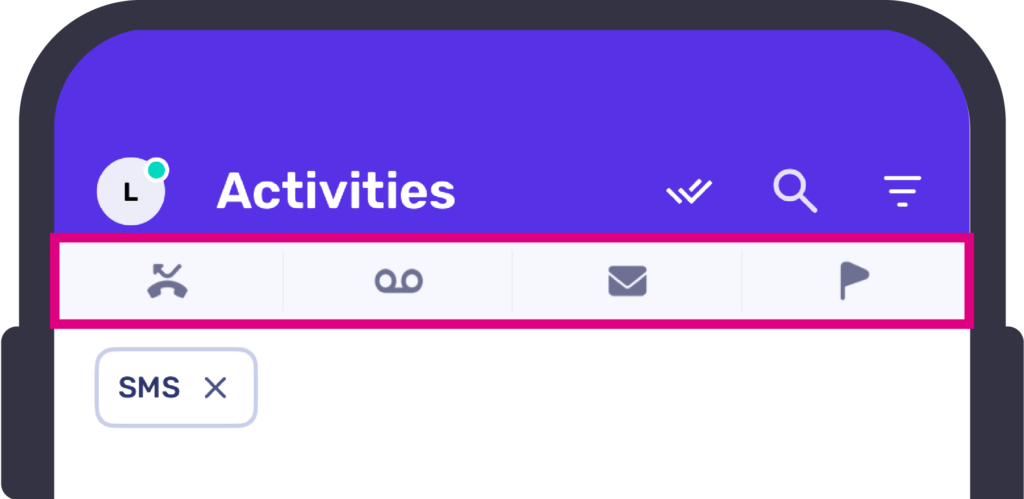
To remove any filters you apply, simply tap ‘X’ (for example, next to SMS as shown below).
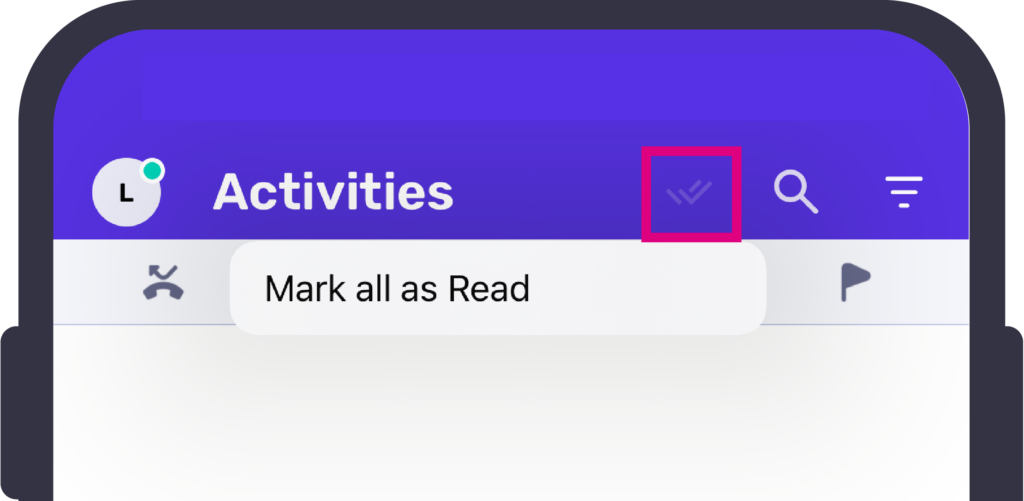
Tap the double tick icon if you wish to mark all call activity as ‘read’.
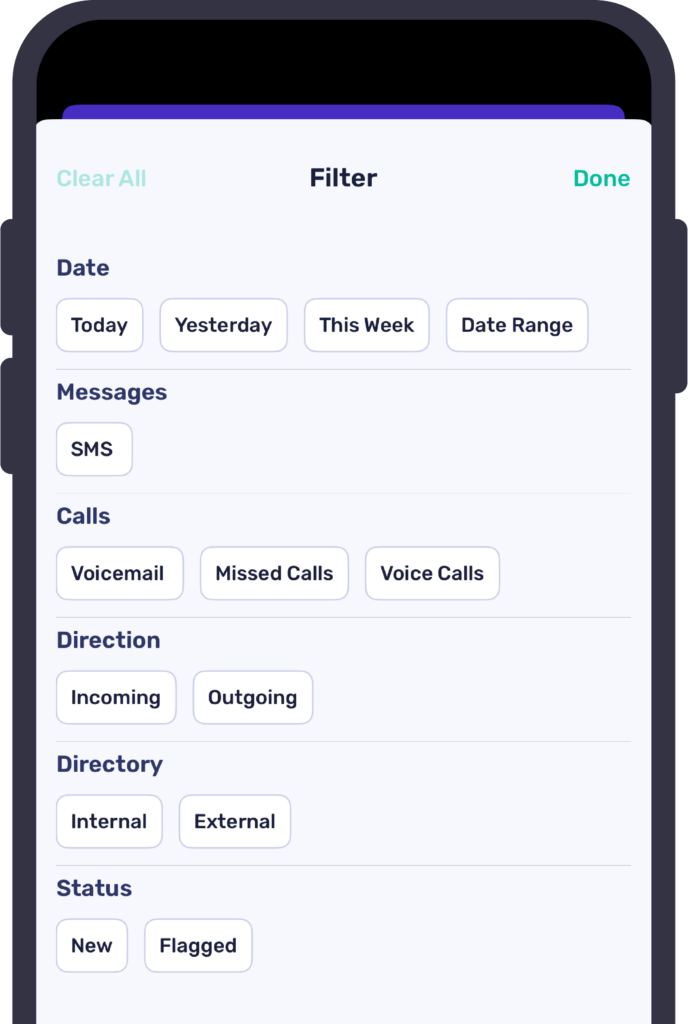
Tap the magnifying glass to search your call activity, or the bars to filter your call activity by:
- Date
- Messages
- Calls
- Direction (i.e. incoming or outgoing)
- Directory; Or
- Status.
Troubleshooting
If you are not able to view certain call activity e.g. calls made/received from people outside of your company, please check the following:
- The filters applied to your activity feed have not been changed to restrict what is displayed.
If you are still having issues, please contact your service provider.
Activity feed icons
Coming soon!