
As a PhoneLine+ Admin user, you have the ability to block specific numbers as needed.
Blocking numbers (desktop)
First, navigate to your administrator settings page then click ‘Blocking’.
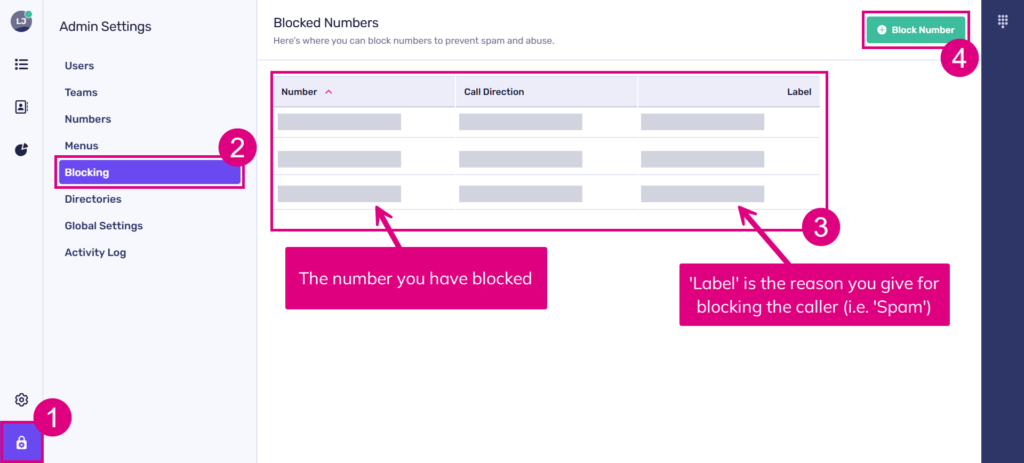
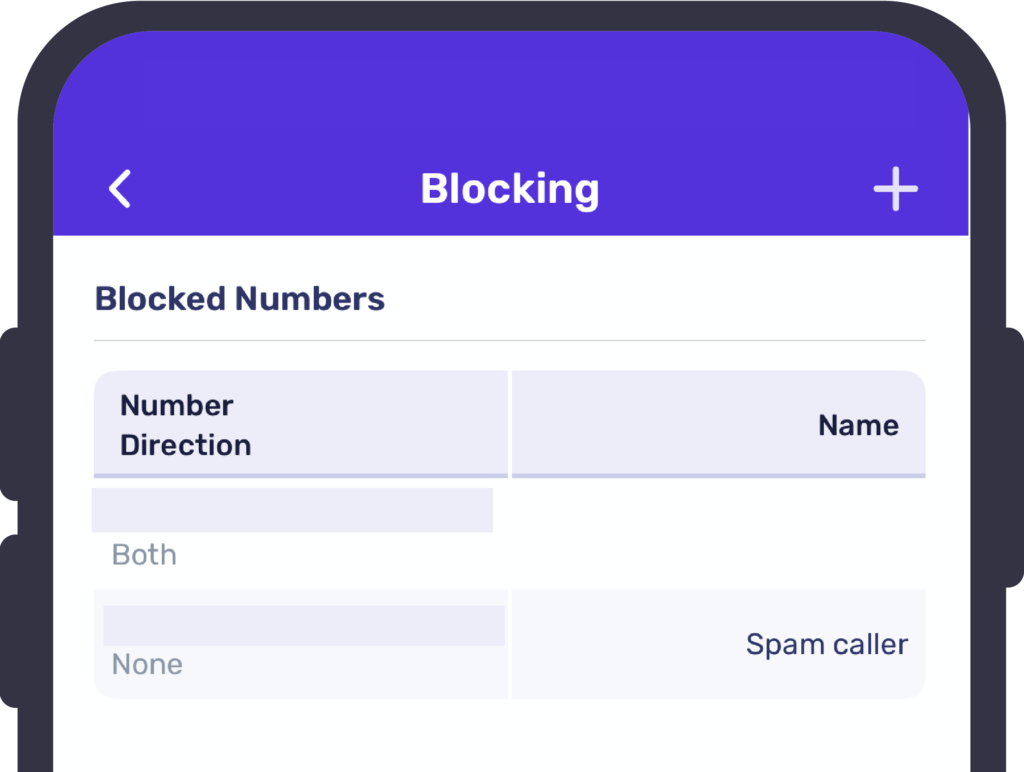
The ‘Blocked Numbers’ section will showcase your blocked numbers, along with the direction of the block and any associated labels.
To block a number…
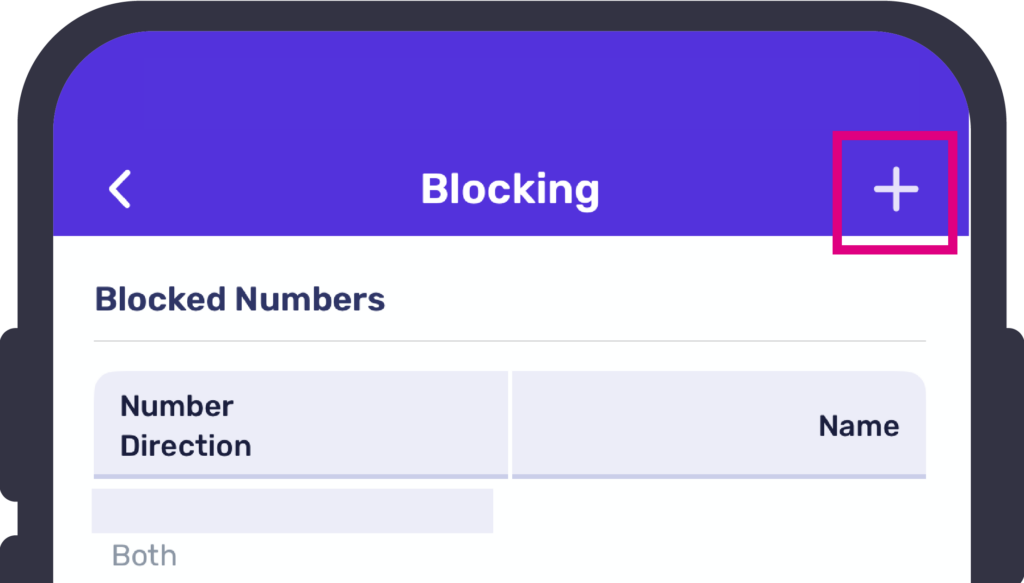
Click the ‘Block Number’ icon at the top right of the screen.
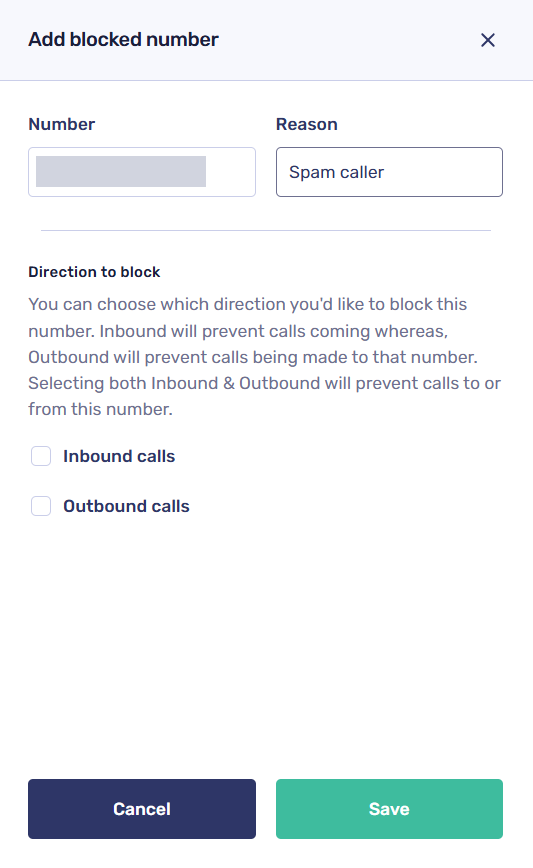
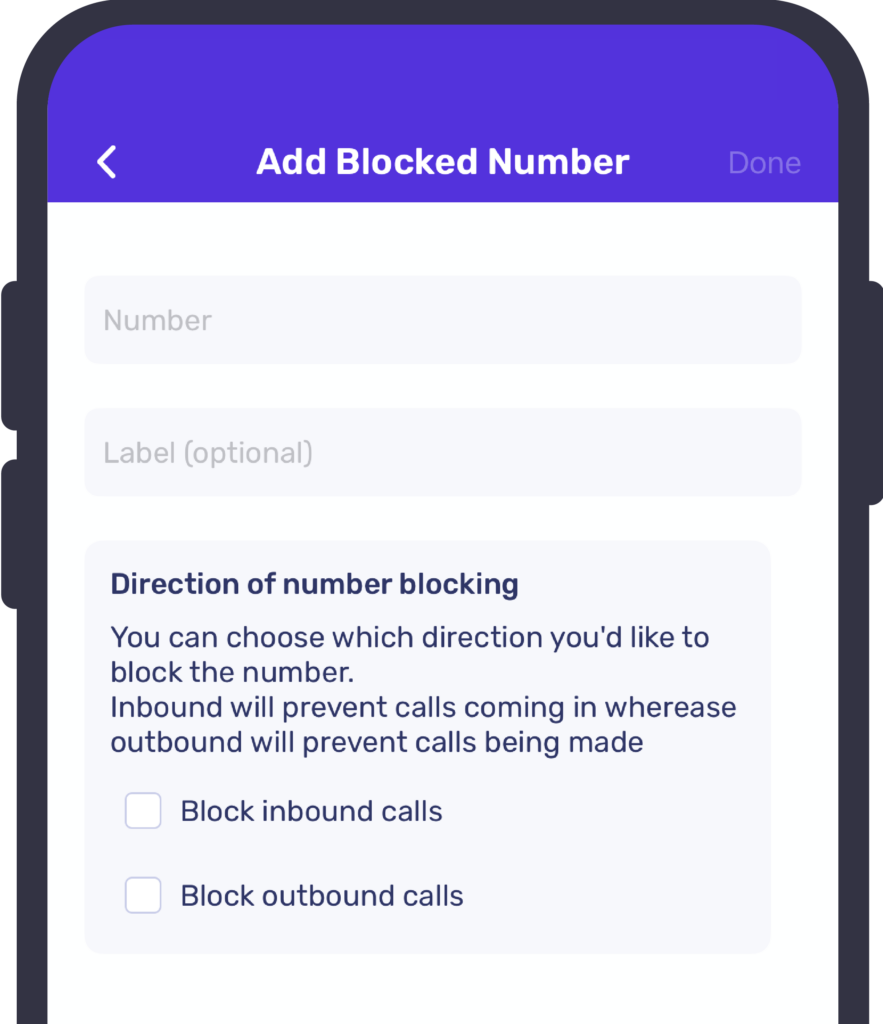
Here, enter the following information:
- The number you want to block
- The rationale for blocking a number, such as identifying it as a spam caller, will be displayed in the ‘Label’ field of the ‘Blocked Numbers’ screen (optional)
- The configuration of the block—specifically, the choice to include both inbound and outbound calls—will effectively block calls to and from this number.
Once you have entered the required information, press the ‘Save’ button.
Edit or unblock numbers
To unblock a number, navigate to the ‘Admin Settings’ menu and choose ‘Blocking.’ From there, select the number you wish to unblock from the ‘Blocked Numbers’ section.
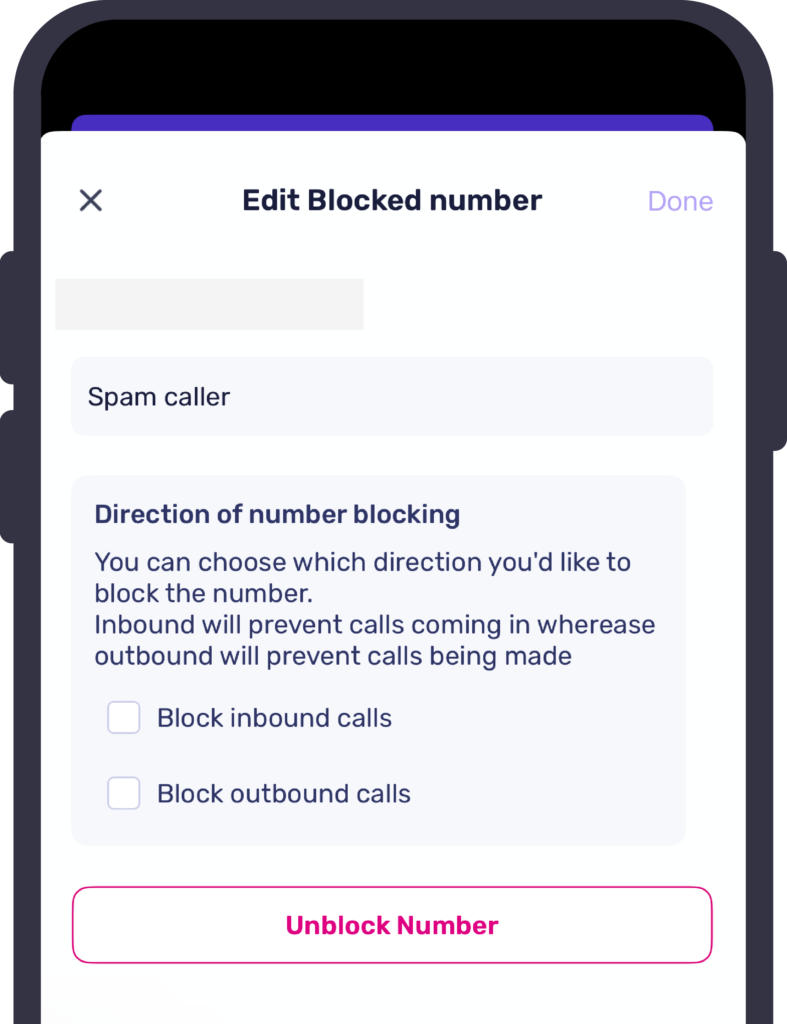
Within the edit panel, you can change the number and the label you have assigned. You can also edit the inbound/outbound settings.
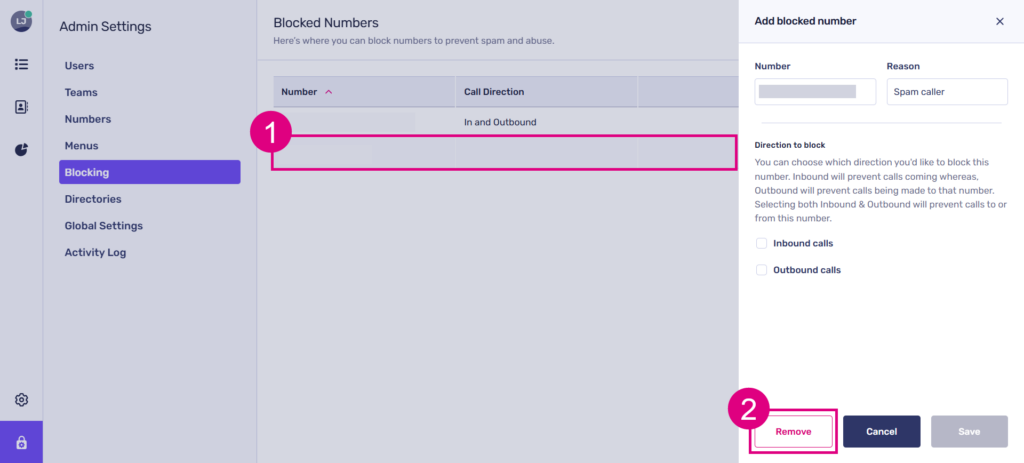
Click ‘Remove’ to delete the number as a ‘blocked’ number.
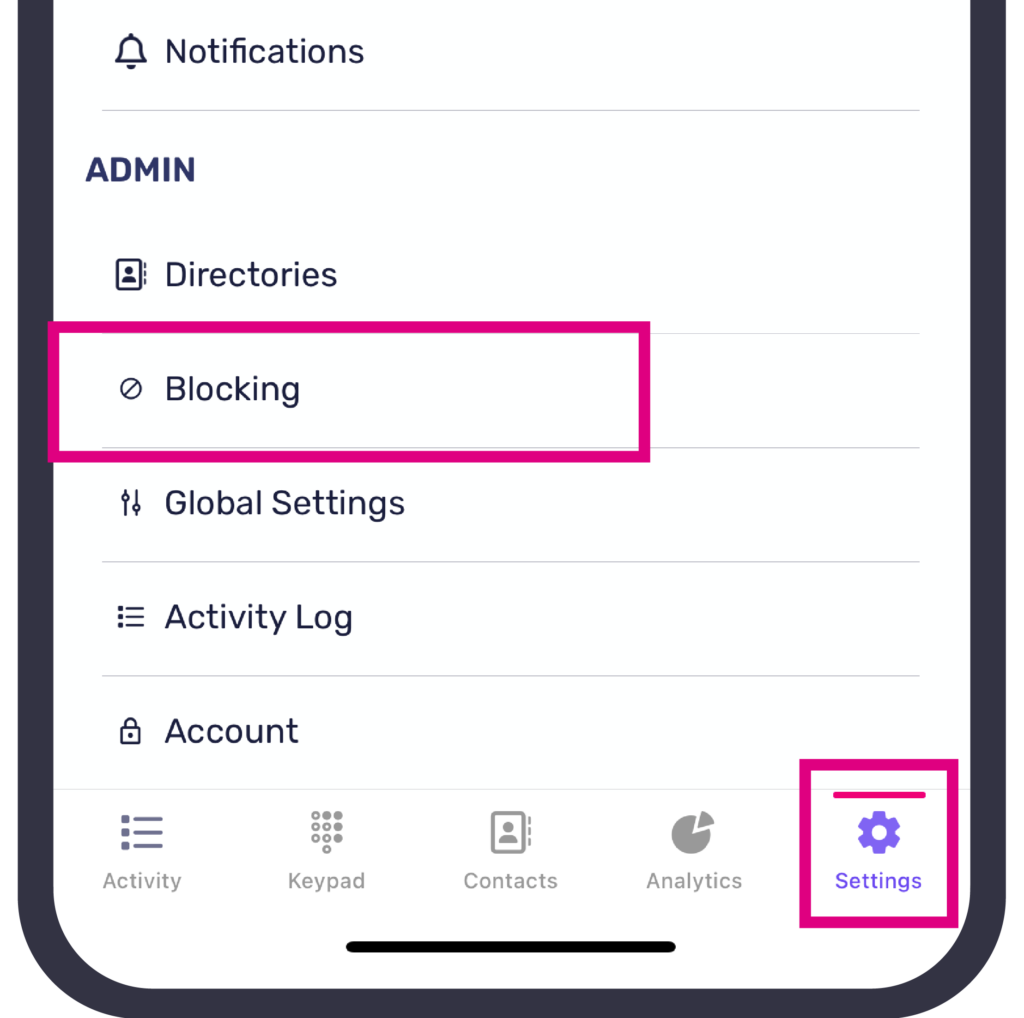
 Blocking numbers (mobile)
show more
Troubleshooting
If you are unable to block a number, please consider the following steps:
- The number you entered is valid and contains the appropriate number of digits.
- You have chosen the direction in which the block will be applied: either inbound, outbound, or both.
If you are still having issues with this feature, please contact your service provider.