Skip to content
No results
When autocomplete results are available use up and down arrows to review and enter to go to the desired page. Touch device users, explore by touch or with swipe gestures.
  • App download links
  • Example Release Notes
  • Feedback
  • Home
  • PhoneLine+ Customer Knowledge Base
  • Release Notes
  • PhoneLine+ features
  • What’s new?
  • Search results
  • Classic Home
  • PHONELINE+ APPLICATION – END USER LICENCE AGREEMENT
PhoneLine+ Logo.
  • PhoneLine+ features
  • App download links
Release Notes
PhoneLine+ Logo.

Getting started

5
  • PhoneLine+ Quick Start guide
  • Minimum system requirements
  • Registering and logging in
  • How to sign out and check for updates
  • Forgotten password

Making and Receiving Calls

5
  • Call short codes (all devices)
  • Choosing a number to call from
  • Making and receiving calls
  • Features during a call
  • Call activity

Call Settings & Voicemail

6
  • Call settings
  • Outbound and inbound call permissions
  • Hold music
  • Out of hours settings
  • Voicemail
  • Voice Portal codes

Managing Contacts

3
  • Adding and deleting a contact
  • Contact categories and filters
  • Managing your PhoneLine+ contacts

Integrations

5
  • WhatsApp Business integration
  • Send a message via WhatsApp Business
  • WhatsApp Business integration Q&A
  • eSIM support
  • Mobile numbers and SMS

PhoneLine+ Analytics

2
  • Create and download reports (desktop only)
  • View your PhoneLine+ Analytics

User Presence & Profile Settings

3
  • ‘My Details’ and ‘My Account’
  • Setting your user presence
  • Snooze

Sound Settings

2
  • Your audio library
  • Audio settings and ringtone selection

Device Guides

4
  • Yealink T34W User Guide
  • YeaLink T31W User Guide
  • PhoneLine+ Supported Hardware
  • Device troubleshooting

Adding & Sharing Recordings

1
  • Add/share recordings, and audio recommendations

Notifications

1
  • Manage your email notifications

Administrator Functionality

7
  • View and edit PhoneLine+ users
  • View, search for, and unassign numbers
  • Blocking numbers
  • Add and manage teams
  • Add and manage menus
  • Global Settings & Activity Log
  • Speed dials

Troubleshooting Quick Tips

3
  • Your PhoneLine+ welcome email
  • Resetting your password
  • Navigating the PhoneLine+ Customer Knowledge Base
  • Home
  • Docs
  • Managing Contacts
  • Adding and deleting a contact
View Categories

Adding and deleting a contact

3 min read

down arrow Adding and deleting a contact on desktop

show more
Create a new contact

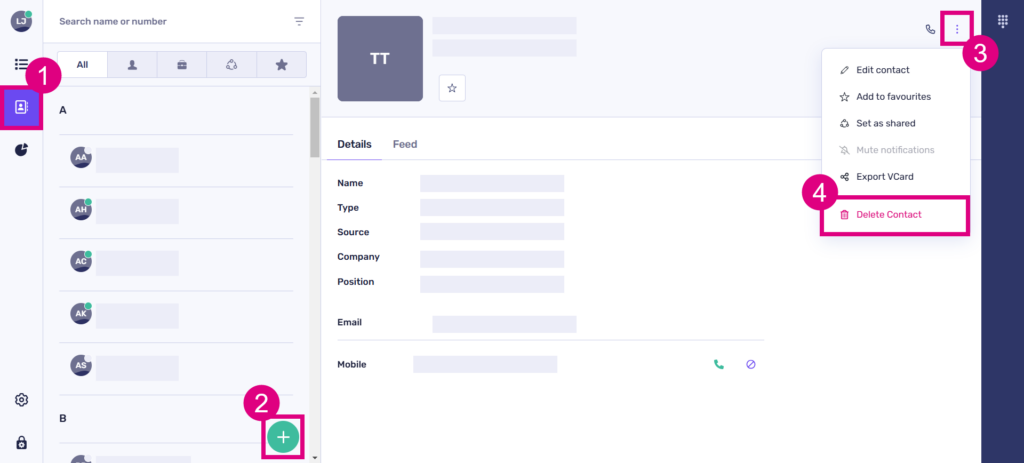
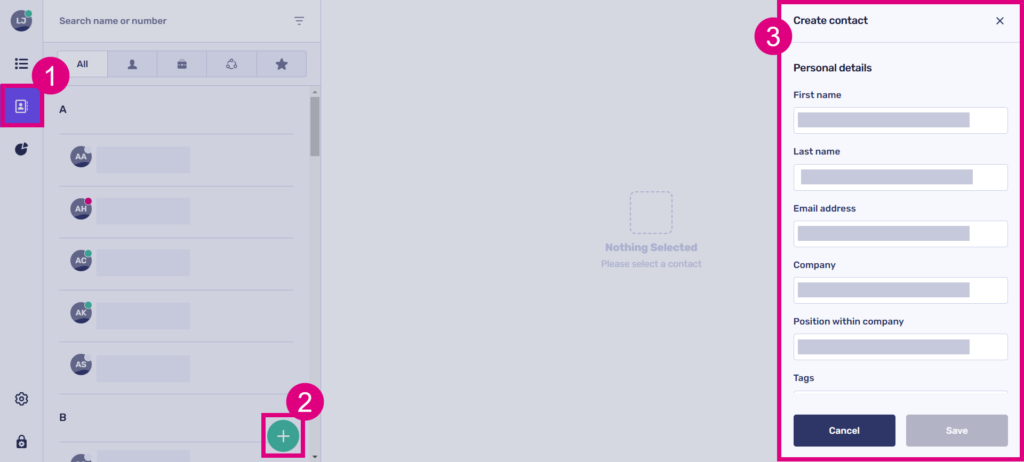
To create a new contact on desktop, click the ‘Contacts’ icon, followed by the ‘+’ icon at the bottom of your contacts screen.

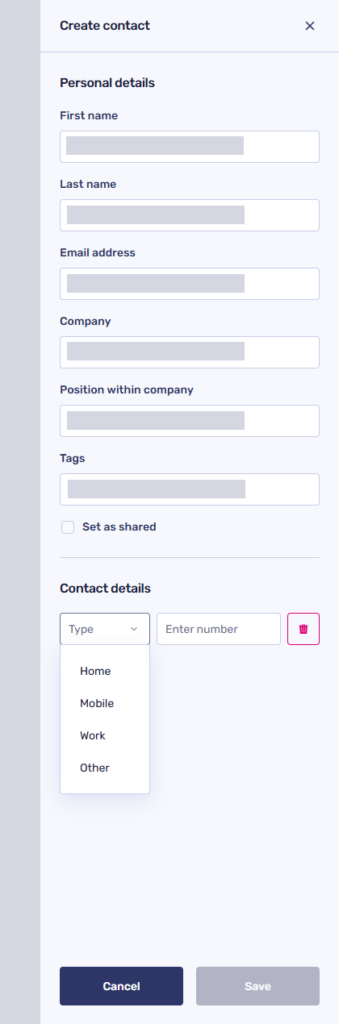
A new window will appear on the right side of your screen – this is where you can add the personal details of your new PhoneLine+ contact, such as:

  • A first and last name
  • An email address
  • The name of the company they work for
  • Their position/job role within that company
  • Any tags you wish to associate with the user
  • Their contact number (select ‘Home’, ‘Mobile’, ‘Work’ or ‘Other’ from the drop-down menu).

‘Set as shared contact’ will allow other PhoneLine+ users within your company to access your contact’s details. Leave this option turned off for private contacts, or those which other PhoneLine+ users within your company will not need to use.

You can add multiple numbers per contact by clicking ‘Add New’ below each number.

Contact tagging

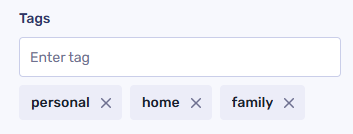
You can add ‘tags’ to your contacts, which allow you to filter users when searching your contacts list later.

When creating (or editing) a contact, add your tags within the ‘Tags’ field (for multiple tags, click the ‘+’ icon). For example, you may wish to use ‘personal’ as a tag for personal contacts.

Deleting a contact

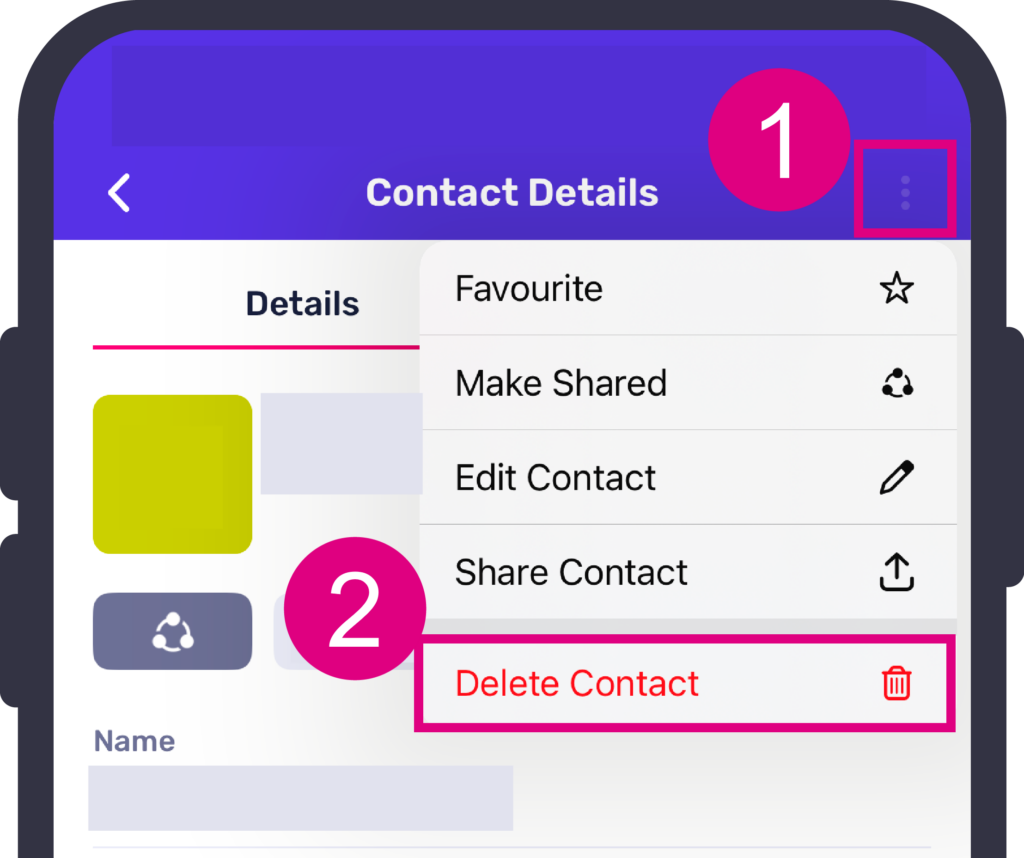
To remove an existing contact, go to your ‘Contacts’ screen, select the contact you want to delete, and then click the three dots located at the top right corner of the screen.

Click ‘Delete Contact’.

Please note! This action is irreversible. If you would like to add the contact again, you will need to do so manually from the beginning.

show less

down arrow Adding and deleting a contact on mobile

show more
Create a new contact

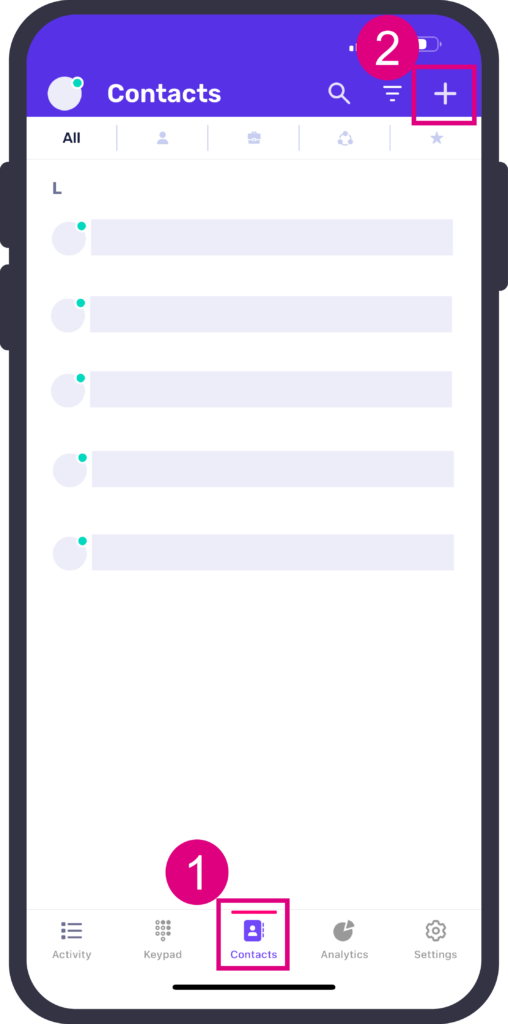
To create a new contact on mobile, tap the ‘Contacts’ icon, followed by the ‘+’ icon at the top right side of your screen.

You must enter:

  • First and last names
  • An email address
  • The name of the company they work for
  • Their position/job role within that company
  • Any tags you wish to associate with the user
  • Their contact number (select ‘Home’, ‘Mobile’, ‘Work’ or ‘Other’ from the drop-down menu).

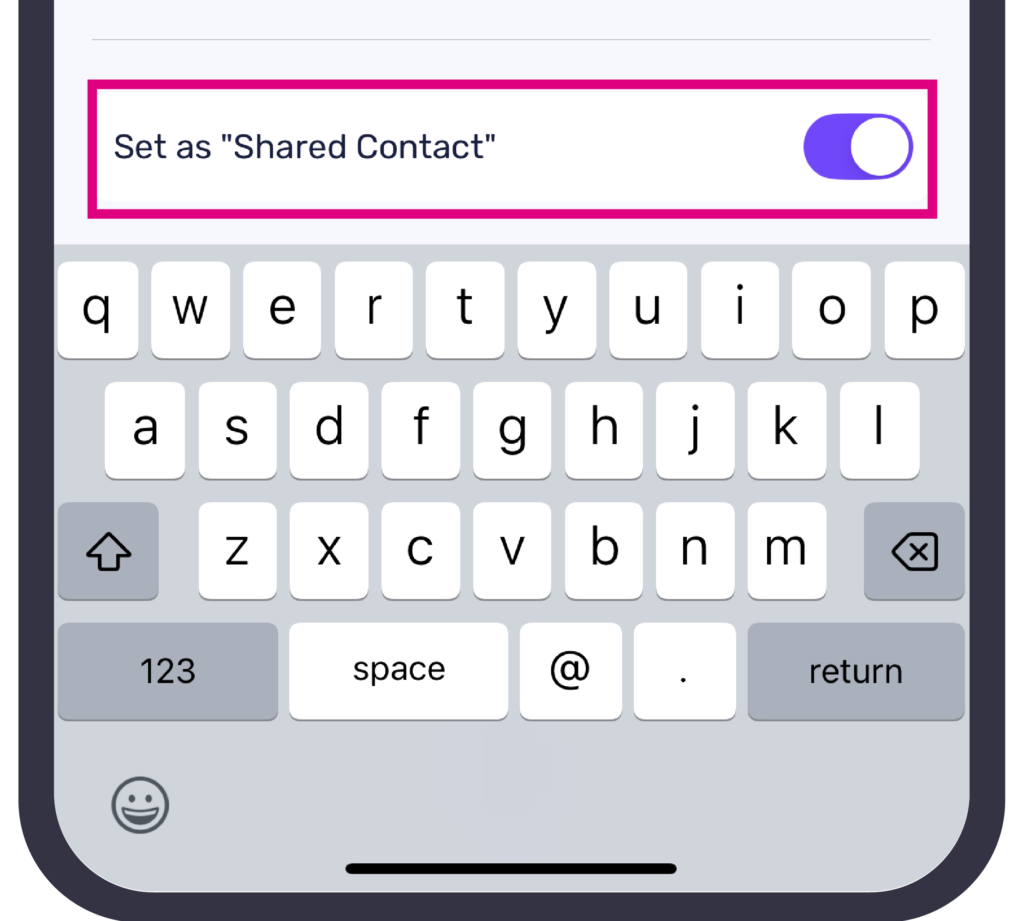
‘Set as shared contact’ will allow other PhoneLine+ users within your company to access your contact’s details. Leave this option turned off for private contacts, or those which other PhoneLine+ users within your company will not need to use.

Deleting a contact

To delete a user from your PhoneLine+ contacts list on mobile devices, simply navigate to your ‘Contacts’ screen and tap on the contact you wish to remove.

To delete a contact, tap the three dots located in the top right corner of the screen, and then select ‘Delete contact’.

Please note! This action is irreversible. If you would like to add the contact again, you will need to do so manually from the beginning.

show less

Adding a contact – troubleshooting

If you are not able to add a new contact, please check the following:

  • You have entered at least a first name for the contact
  • You have added at least one telephone number for the contact
  • Any email addresses added for the contact are in a valid format.

If you are still having issues, please contact your service provider.

How do you feel about this content?
Managing your PhoneLine+ contactsContact categories and filters
Table of Contents
  • Adding and deleting a contact on desktop
  • Create a new contact
  • Contact tagging
  • Deleting a contact
  • Adding and deleting a contact on mobile
  • Create a new contact
  • Deleting a contact
  • Adding a contact - troubleshooting
  • Home
  • PHONELINE+ APPLICATION – END USER LICENCE AGREEMENT
We use cookies to measure performance and make improvements to this service. This includes page views, device/browser, location, and page interactions. We do not collect any information you upload to this site. By agreeing, you consent for your data to be used for this purpose.