
Introduction
The T34W is a high-performance, colour screen Wi-Fi IP phone with an extra-large 320×240-pixel colour display with backlight. It also offers high-definition (HD) audio, dual-band 2.4GHz & 5GHz Wi-Fi, dual-port Gigabit Ethernet with integrated Power over Ethernet (PoE), and a USB 2.0 port for headset connections.
Supported features
For the initial launch of the Yealink T34W on PhoneLine+, we will be supporting all of the existing features that are also supported on our previous IP handsets on the platform (Polycom VVX150, etc.), this will mean the following is supported:
- Outbound calls
- Inbound calls
- Voicemail access
- Call hold
- Call waiting
- Call Transfer
- Instant conference (N-way Calling)
- Contact Syncing (standard, Office, Anywhere license only)
Yealink T34W Handset
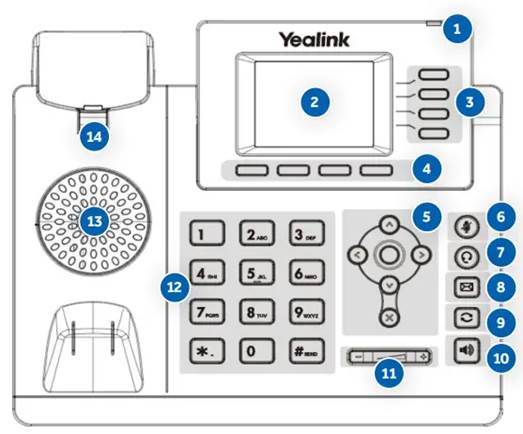
| No | Item | Description |
| 1 | Power LED | Indicate call message, and phone system status. |
| 2 | Phone Screen | Shows information about your phone, such as calls, messages, Soft keys, time and date. |
| 3 | Line Keys | Access your phonelines and features. |
| 4 | Soft Keys | Access the function above the soft keys on the screen. The softkeys change depending on what you are doing at the time. |
| 5 | Navigation Keys | Scroll through information or options displayed on the screen.Access History and Directory respectively. |
| OK Key | Confirm actions or answer incoming calls. | |
| Cancel Key | Cancel actions or reject incoming calls. | |
| 6 | Mute Key | Toggle the microphone on or off. |
| 7 | Headset Key | Toggle the headset mode on or off. |
| 8 | Message Key | Access your voice massages. |
| 9 | Redial Key | Redial a previously dialled number. |
| 10 | Speakerphone Key | Toggle the speakerphone (hands-free) mode. |
| 11 | Volume Key | Adjust the handset, headset, and speaker volume. |
| 12 | Keypad keys | Allows you to enter numbers, letters, and special characters. If a menu item has an index number, you can use the keypad key to select the item. |
| 13 | Speaker | Provide ringer and speakerphone audio output. |
| 14 | Reversible Tab | Secure the handset in the cradle when the phone is mounted vertically. |
1. Connecting your phone to WiFi
- Press the Menu soft key.
- Use the navigation arrow keys and OK keys to reach the Basic menu option.
- Scroll down to Wi-Fi option using the navigation keys and press OK.
- Toggle Wi-Fi to ON using the right navigation key, then press the down navigation key to scan for networks.
- Scroll down to the Available Networks option using the navigation keys and press OK.
- Select the desired Wi-Fi network using the navigation and OK keys and follow the prompts to enter any required password, then press the Save soft key.
2. Placing Outgoing Calls
When the phone is not in use:
- Pick up the handset or press the Speakerphone button.
- Dial tone will be heard.
When using a headset:
- Press the Headset button to activate headset mode.
- Dial a speed dial or telephone number.
When you are already on a call:
- Press the Hold soft key.
- Press the New Call soft key.
- Dial a speed dial or telephone number.
- Resume the original call by pressing the Resume soft key.
3. Answering an Incoming Call
On the handset:
- Pick up the handset to answer the call.
On a headset:
- When the headset is connected, press the Headset button to answer the call.
On Speakerphone:
- Press the Speaker button to answer the call.
4. Rejecting an Incoming Call
- Press the Reject soft key to immediately send the caller to voicemail.
5. Ending a Call
On a handset
- Hang up the handset.
On a headset:
- Press the Headset button.
On speakerphone:
- Press the Speakerphone button.
6. Call Hold
Placing a call on hold:
- While on a call, press the Hold soft key.
Retrieving calls on hold:
- Press the Resume soft key.
7. Mute
- To mute the microphone on a call, press the Mute button.
- To unmute the microphone, press the Mute button again.
8. Transferring Calls
Blind Transfer
- Press the Transfer soft key during an active call.
- Enter the number or speed dial you want to transfer to.
- Press the Transfer soft key again.
- Press the Transfer soft key during an active call.
- Enter the number you want to transfer to and press the Dial soft key.
- Press the Transfer soft key after the second party answers and you have announced the call.
9. Call Waiting
While already on a call, and a new call rings in, you will hear a beep tone emitted by your phone.
To Answer the Second Call:
- Press the Answer soft key to access that call. The first call will be placed on hold.
- Once the second call has ended, resume the original call by pressing the Resume soft key.
To Reject the Second Call:
- Press the Reject soft key to immediately send the caller to voicemail.
10. Speakerphone
While the phone is not in use:
- Press the Speakerphone button to activate the speakerphone and get a dial tone for an outbound call.
While on a call on the handset or headset:
- Press the Speakerphone button to continue the current call on the speakerphone.
While a call on speakerphone is active:
- Press the Speakerphone button to hang up the current call.
11. Instant Conference (N-Way Calling)
- Press the Conf soft key during an active call.
- The call is placed on hold.
- Enter the number of the second party, and press the Send soft key
- Press the Conf soft key again when the second party answers.
- All parties are now joined in the conference.
- Press the End Call soft key to disconnect all parties.
12. Feature Access Codes
Feature access codes can be used on this device as an alternative method for controlling calling features when not using a client or app. They are a series of key presses which facilitate certain functions on within the platform.
Please note, that the ability to use an FAC will be dependant on your user permissions
| Feature | FAC | Description |
| If calls are not answered | #41 | Set to Keep Ringing |
| *41 | Send calls to voicemail | |
| *92 | Always forward calls to another number. To set the forwarding destination you must add the full number after the code before dialing, for example, dialing *9207012345678 would set calls to be forwarded to 07012345678 | |
| *93 | Remove call forwarding, this will then default back to Keep Ringing | |
| *61* | Check what your current settings are | |
| Anonymous Call Rejection | *77 | Switch Anonymous Call Rejection on |
| *87 | Switch Anonymous Call Rejection off | |
| *52* | Check what your current Anonymous Call Rejection settings are | |
| Voice portal | *62 | Access your voice portal |
| 1571 | Access your voice portal | |
| Call Pull | *11 | Pull a live call to a different device/Client/App |