
Welcome to WhatsApp Business integration!
WhatsApp Business integration allows customer companies to respond to their customer messages, directly within the PhoneLine+ app.
Businesses can easily monitor all interactions through their ‘Activity’ feed, enabling them to respond quickly without the hassle of switching between platforms.
Please note! WhatsApp Business can only be configured using the desktop application. Once the setup is complete, all features will also be accessible on mobile devices.
Essential setup checklist
To set up WhatsApp Business Integration you will need:
- A verified Facebook Business Manager account
- A WhatsApp Business account
- A phone number that is not tied to an existing WhatsApp or WhatsApp Business mobile app
- The administrative features on PhoneLine+.
How to set up WhatsApp Business on PhoneLine+ (desktop only)
Step 1: Connecting your WhatsApp Business to PhoneLine+
Log in to your PhoneLine+ desktop application.
Navigate to your Admin settings, then click ‘WhatsApp’.
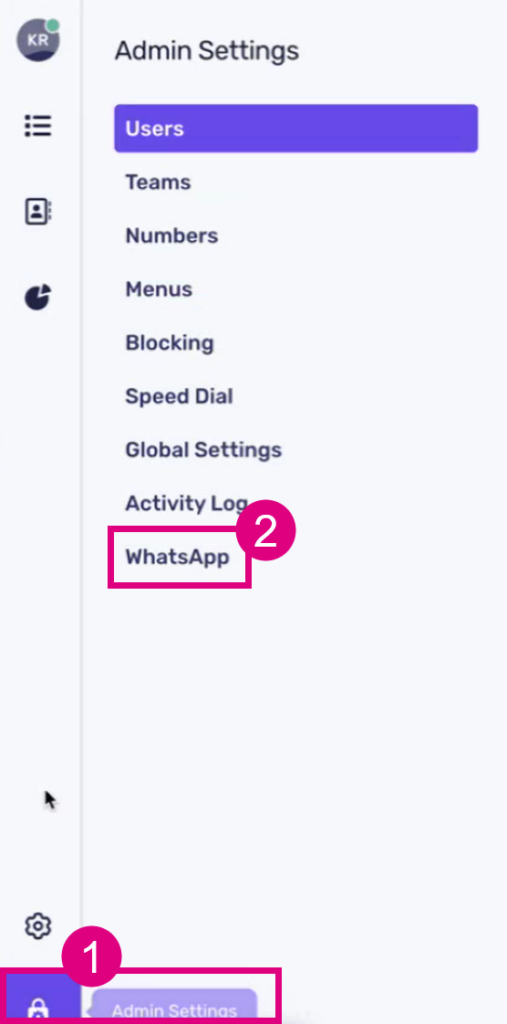
This screen features some guidance to help you get started with setting up your PhoneLine+ to use WhatsApp. To access Facebook, it is essential to have a Facebook Business Manager account. The credentials for this account are what you will use to log in to the platform.
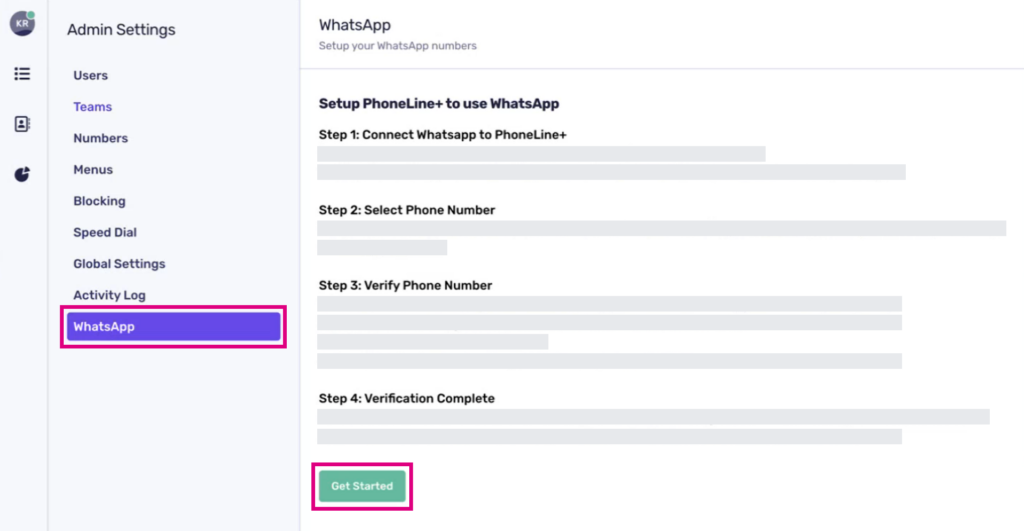
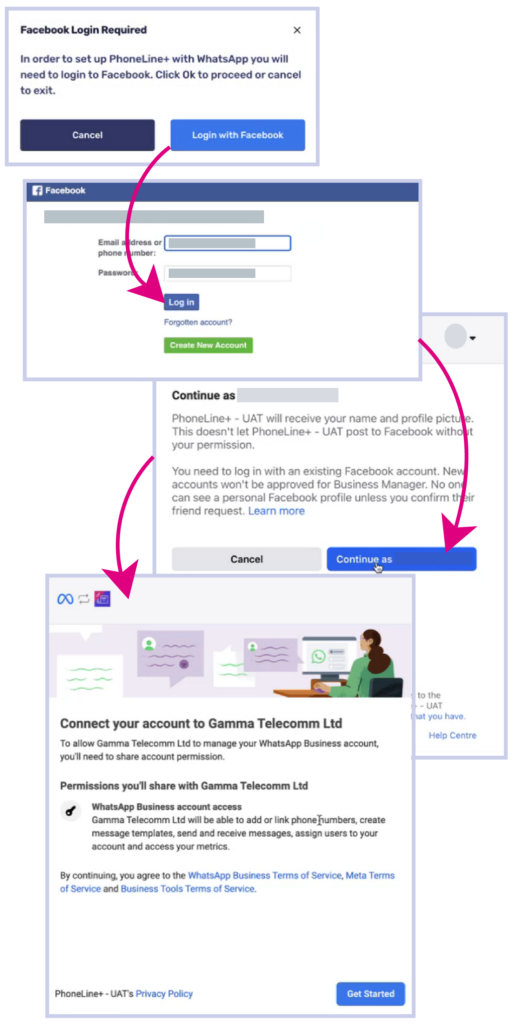
To begin, click the ‘Get Started’ button, then ‘Login with Facebook’ to launch the Facebook/Meta sign-in window.
The next configuration steps occur externally through Facebook.
- You will need to sign in with a Facebook account that has access to Facebook Business Manager. Type in the email address and password for this account, then ‘Log in’.
- Once your account identifies you, please click on ‘Continue as [your name]’
- A new page will display, asking if you wish to share account permission with Gamma Telecom. Click ‘Get Started’.
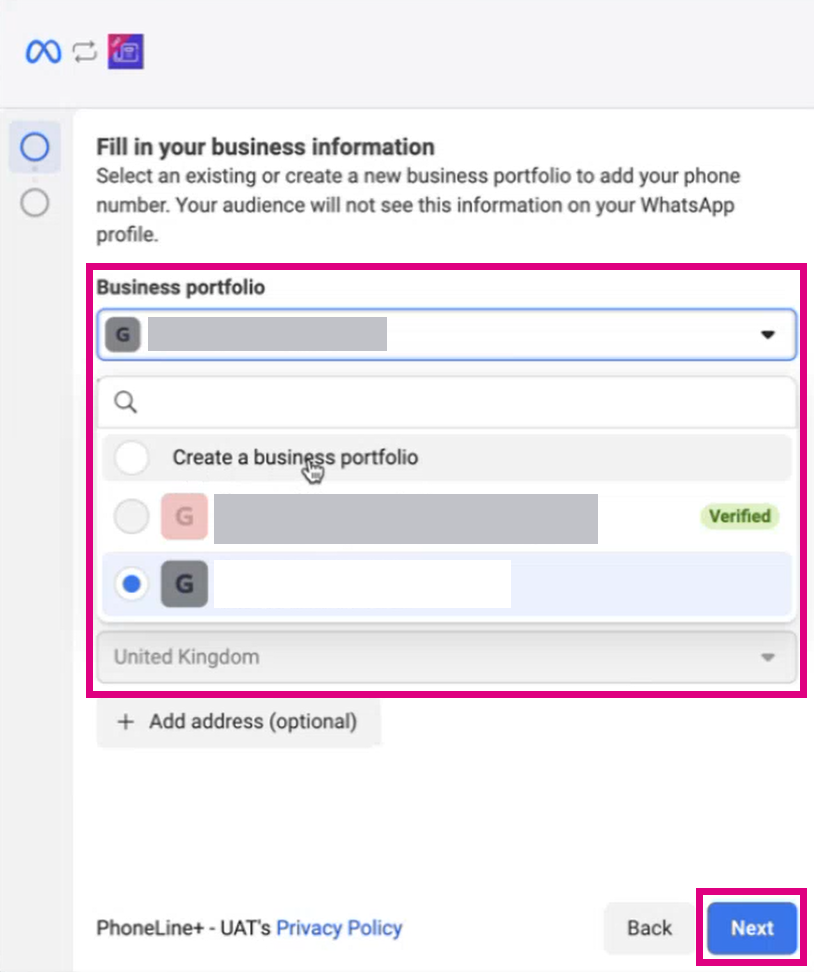
To proceed, please select the Business account from the ‘Business portfolio’ drop-down menu on the screen that appears.
If you don’t have a business account, please click on the ‘Business portfolio’ drop-down menu and select ‘Create a business portfolio.’ Then, follow the on-screen instructions to set up your account.
Click ‘Next’.
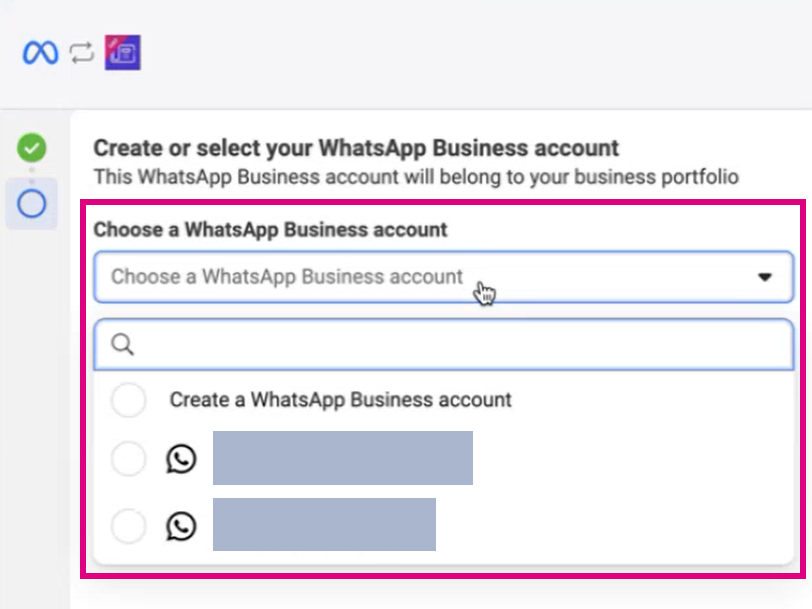
Create or select your WhatsApp Business account
Similarly to the steps above, you will now need to select (or create) a WhatsApp Business account.
To create a WhatsApp Business account, just click on ‘Create a WhatsApp Business account’ and follow the on-screen instructions.
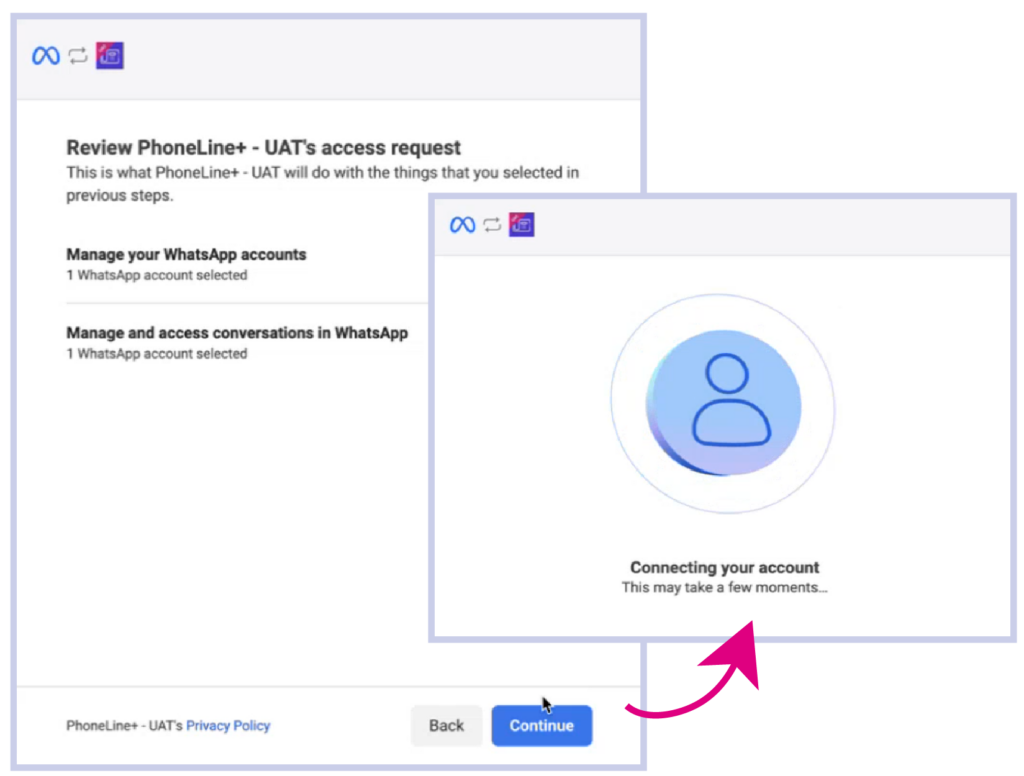
On the next page, click ‘Continue’ to connect your account.
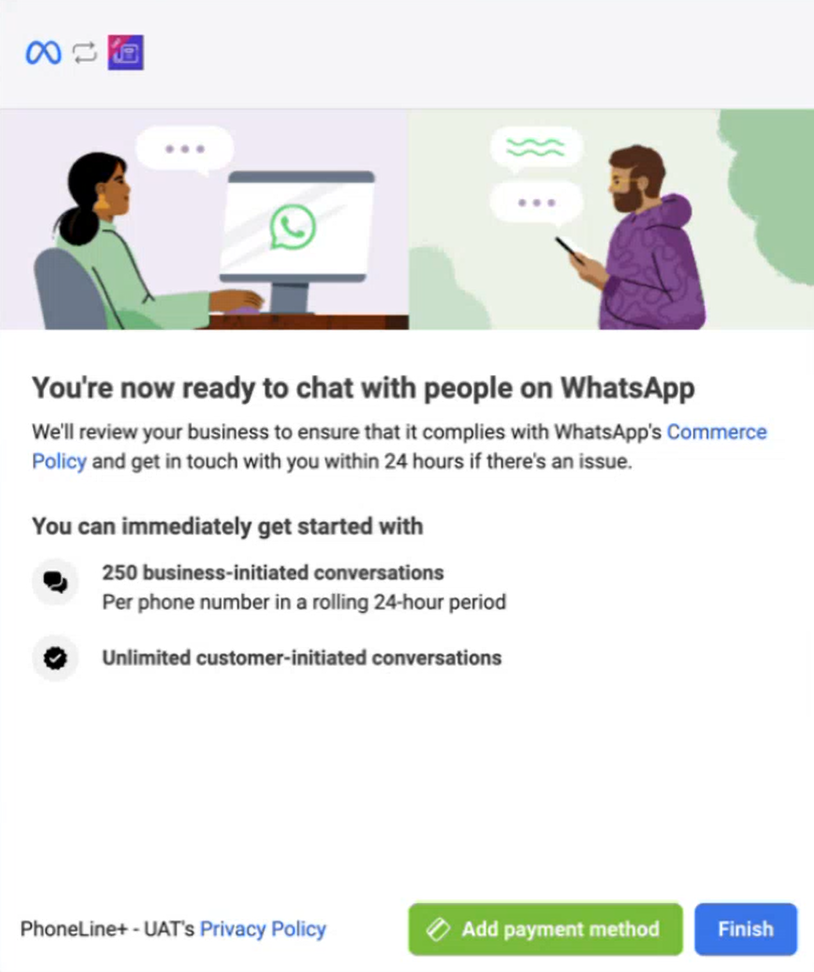
You are now set up with WhatsApp Business, and you can start responding to your customers directly through WhatsApp.
Whilst you can use the integration without adding payment details, there are limitations put in place. These limitations are:
- ❌ Can’t send message templates (e.g., alerts, reminders, promotions)
- ❌ Can’t initiate conversations — only respond within the 24-hour customer window
- ❌ Limited messaging tier — restricted to a low daily message cap
- ❌ Can’t verify multiple phone numbers — users are allocated a maximum of 2 numbers per WhatsApp Business account.
Verify your phone number
Meta will send a 6-digit verification code to the phone number you provided during the WhatsApp Business integration setup. Please follow the verification steps and choose the method that works best for you, whether it be SMS or voice call.
Simply enter the code and click ‘Confirm’.
Finally, enter the Facebook-managed PIN to complete the verification process.
Verification complete!
Congratulations! PhoneLine+ is now successfully configured to enable you to send messages to your customers through the WhatsApp Business API using the provided number.
Set up your WhatsApp numbers
Navigate to your Admin settings, then click ‘WhatsApp’.
You can view the WhatsApp numbers associated with your account here. To add a new number, simply click on ‘Add number’ located in the top right corner.
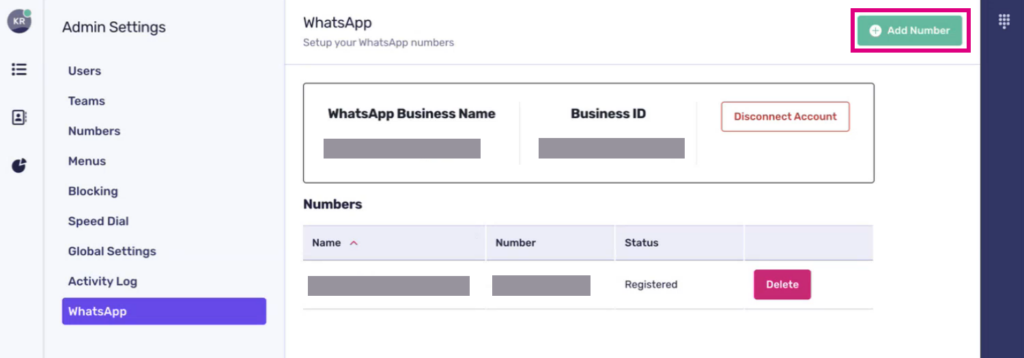
Please be aware that, based on the package you have selected for your customer, a maximum of two numbers can be assigned to each company.
Name your number
Your business name is essential as it represents your identity to customers. This name will appear on all communications sent to them.
If the number you choose cannot be added to PhoneLine+, please refer to the Display Name Guidelines link for further assistance.
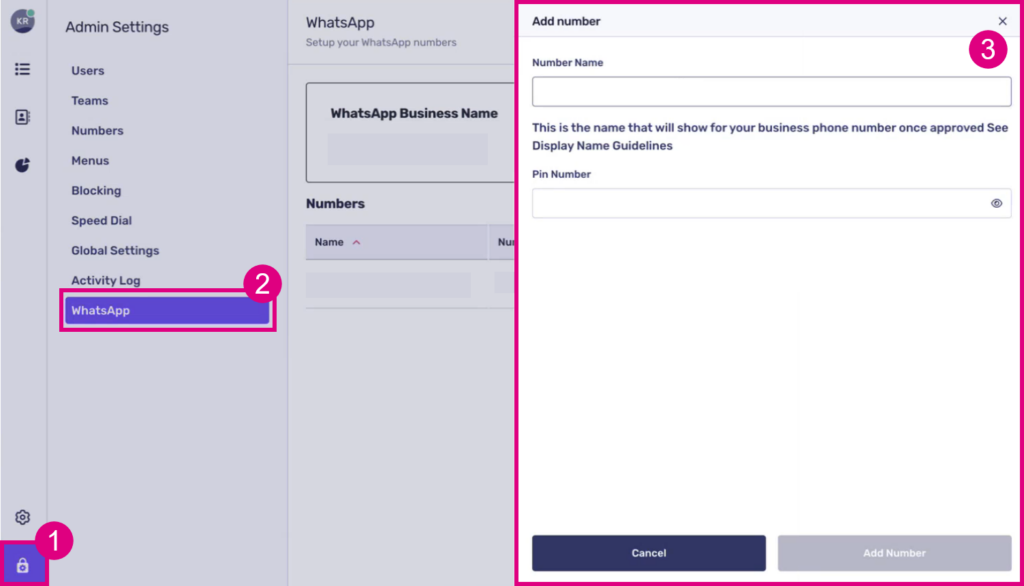
Add a 6-digit PIN
Enhance your security by adding a custom PIN code.
Click ‘Add Number’ when you are ready to continue.