
If your PhoneLine+ account is configured with Administrator privileges, you have the ability to update your company name and localisation settings. This article provides an overview of the features available in the ‘Global Settings’ section of an administrator’s application.
 Global settings (desktop)
show more
To access your company’s Global settings, click the ‘Admin Settings’ padlock icon, then ‘Global Settings’.
In the highlighted box shown below, you can change your company name and its localisation settings and timezone.
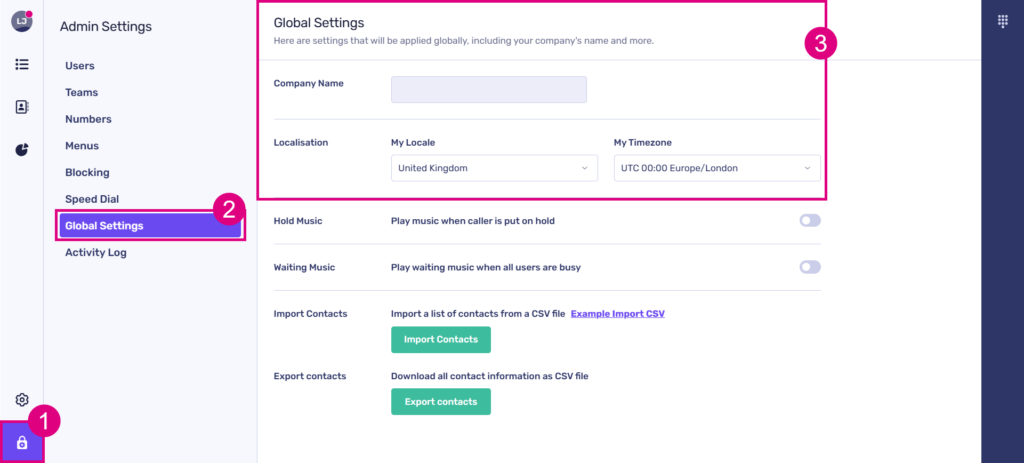
Any changes made on this page will impact your entire company, affecting all PhoneLine+ users associated with it.
Add company hold and/or waiting music
You can configure your company’s default hold and waiting music in this section. This audio will automatically be set for all PhoneLine+ users as their default option, unless they decide to customise it for their own PhoneLine+ accounts.
The audio hierarchy in PhoneLine+ is structured as follows:
- Teams/Menus audio
- Individual user audio
- Global settings audio
Toggle these options on if you wish to configure them.
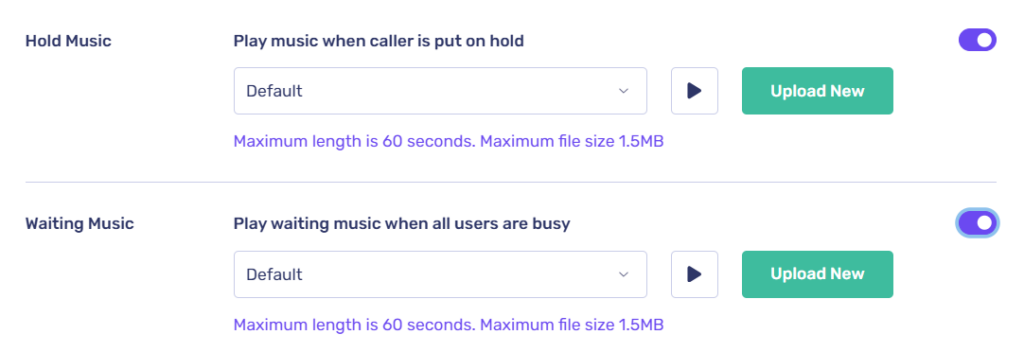
As with all audio uploads within PhoneLine+, you can record a new recording, upload one from your computer/device, or select one from your audio library.
Importing and exporting contacts (CSV)
Only administrators of PhoneLine+ have the functionality to import or export contacts within the application.
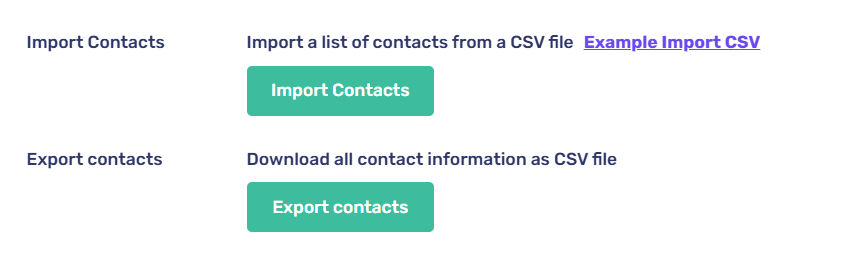
Please note! PhoneLine+ contacts can only be imported and saved in CSV format. This option is only available on desktop versions of PhoneLine+.
Activity log
Within the Administrator settings is the Activity Log.
This screen provides PhoneLine+ administrators with a comprehensive view of all administrative changes made to their company account.
To view this screen, navigate to the ‘Admin Settings’ area then click ‘Activity Log’.
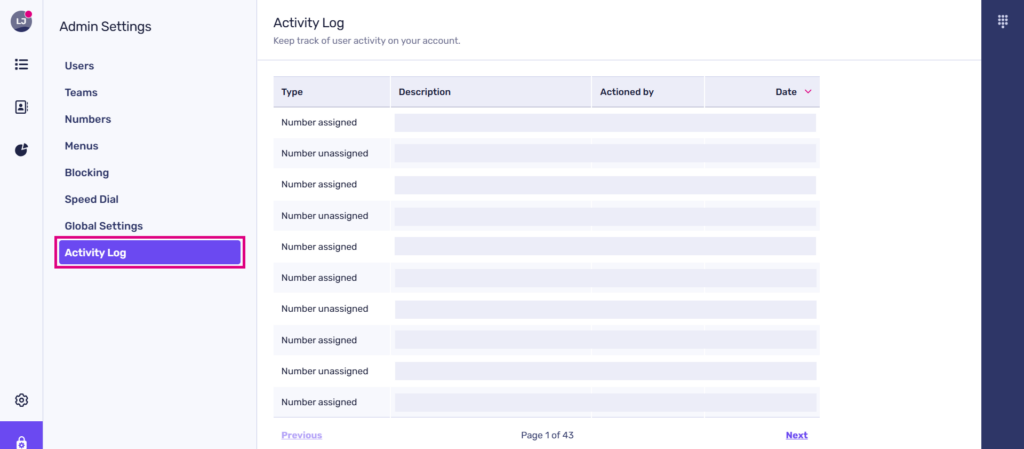
In the Activity Log, you’ll discover a detailed record of all admin-related events, presented in the following order:
- Type (displays the various log activity)
- Description (displays a summary of the activity)
- Actioned By (the person responsible for the change)
- Date (the date and time that the action was taken).
This screen covers the following details:
- The creation of new users (the name of the created user)
- Any users who have been deleted (the name of deleted user)
- Any added numbers
- Any removed numbers
- Numbers that have been assigned (including which number, and to whom)
- Numbers that have been unassigned (including which number, and from whom)
- The creation of any Teams or Menus
- The deletion of any Teams or Menus.
Historic activities can be viewed by using the ‘Previous’/’Next’ functions at the bottom of the page.
show less Global settings (mobile)
show more
To access your company’s Global settings on mobile devices, tap the ‘Settings’ icon. Once you are on the ‘Settings’ screen, scroll down until you find the ‘ADMIN’ section.
Tap ‘Global Settings’.
Here, you can change your company name and its localisation settings and timezone.
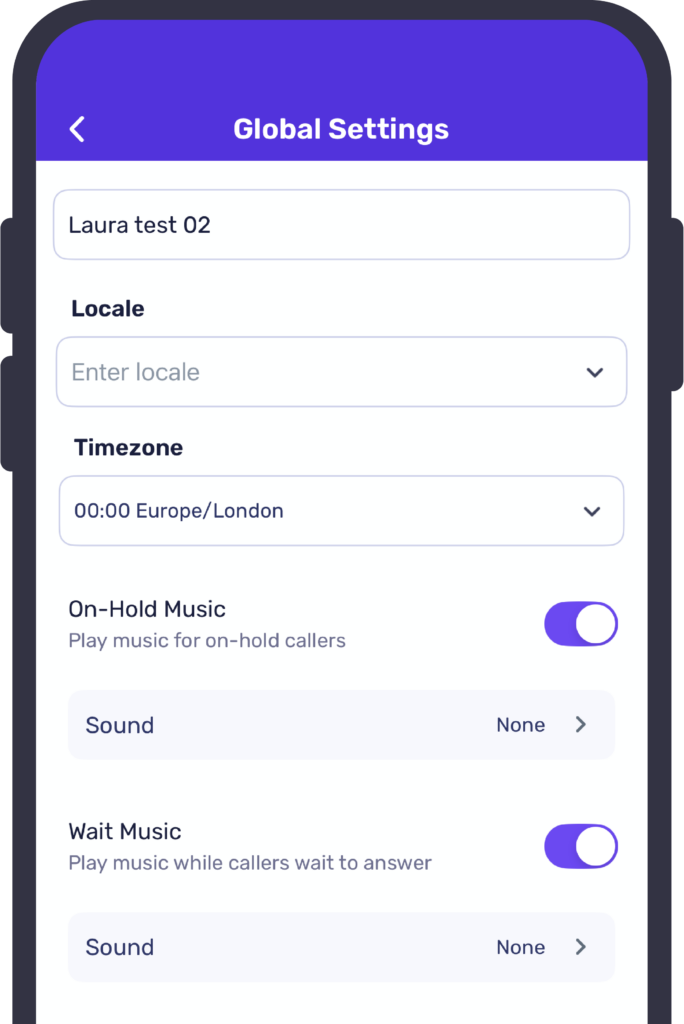
Any changes made on this page will impact your entire company, affecting all PhoneLine+ users associated with it.
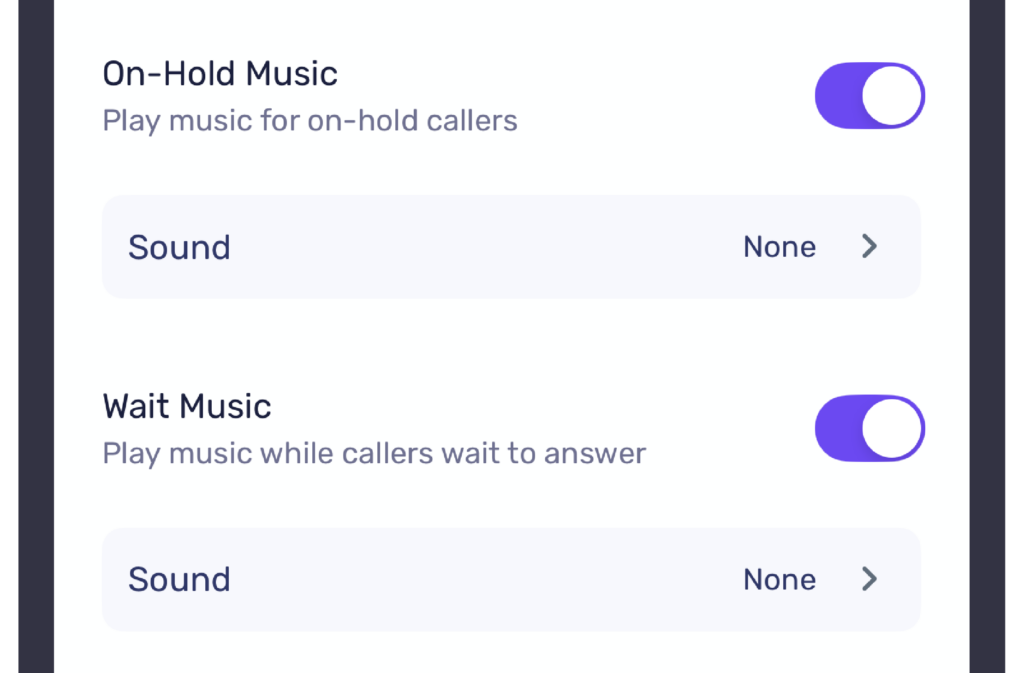
Add company On-Hold and/or Wait music
You can configure your company’s default hold and waiting music in this section. This audio will automatically be set for all PhoneLine+ users as their default option, unless they decide to customise it for their own PhoneLine+ accounts.
The audio hierarchy in PhoneLine+ is structured as follows:
- Teams/Menus audio
- Individual user audio
- Global settings audio
Toggle these options on if you wish to configure them.
Activity log (mobile)
Within the Administrator settings is the Activity Log.
This screen provides PhoneLine+ administrators with a comprehensive view of all administrative changes made to their company account.
To view this screen, navigate to the ‘Admin Settings’ area then tap ‘Activity Log’.
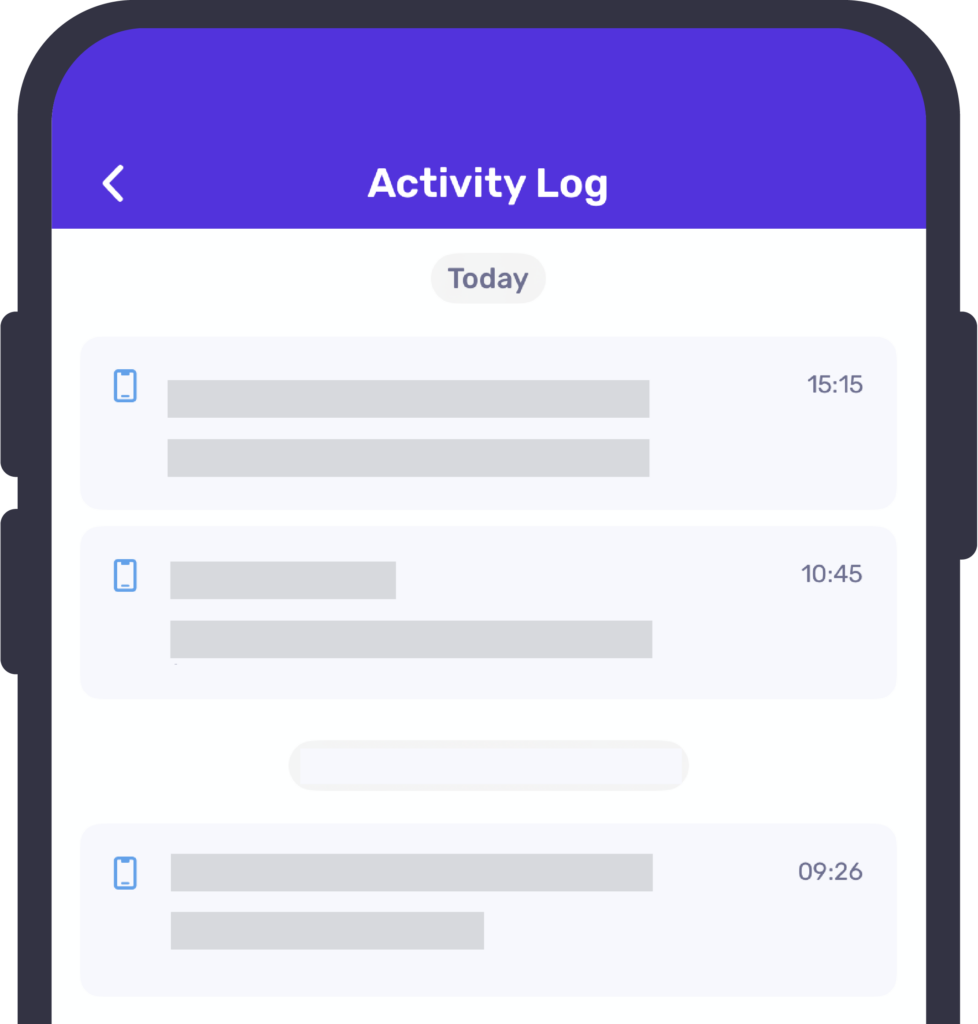
In the Activity Log, you’ll discover a detailed record of all admin-related events, presented in the following order:
- Type (displays the various log activity)
- Description (displays a summary of the activity)
- Actioned By (the person responsible for the change)
- Date (the date and time that the action was taken).
This screen covers the following details:
- The creation of new users (the name of the created user)
- Any users who have been deleted (the name of deleted user)
- Any added numbers
- Any removed numbers
- Numbers that have been assigned (including which number, and to whom)
- Numbers that have been unassigned (including which number, and from whom)
- The creation of any Teams or Menus
- The deletion of any Teams or Menus.
Scroll down to view all historic activity.
show less